Getting Started
An introduction to Needlework Studio and a walkthrough of your first session.
Some features on this page require the Full Version.
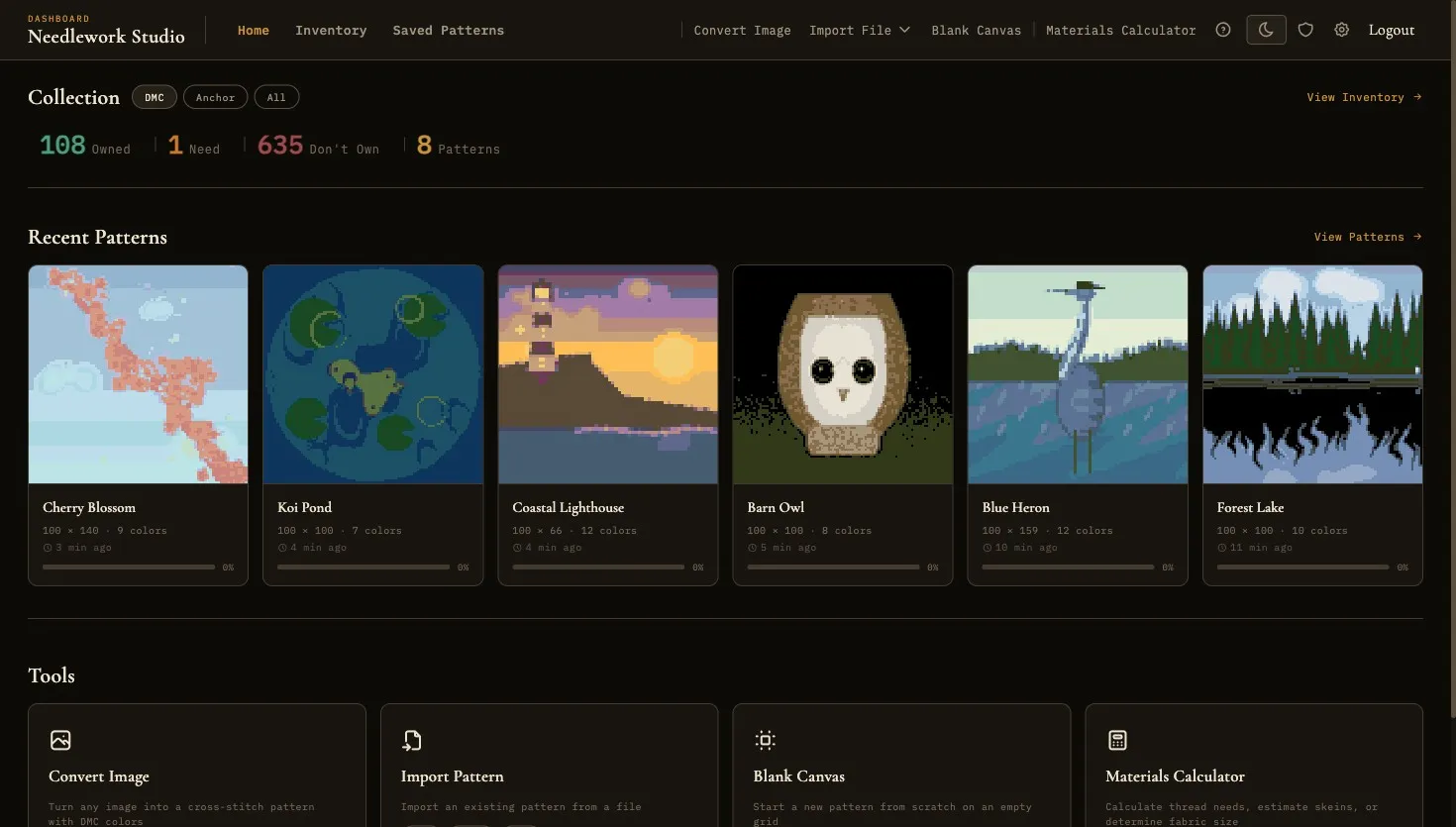
The home dashboard: your collection counts, recent patterns, and tools
What is Needlework Studio?
Needlework Studio is a desktop application for managing and designing counted cross-stitch patterns. The free version is yours to keep, and the Full Version adds more tools and removes the limits. It includes a pattern editor, thread inventory for DMC, Anchor, and Mill Hill brands, project tracking, and import/export in PDF, OXS, and JSON formats. Download it for macOS, Windows, or Linux and start using it immediately - no server, no account setup, no internet connection required. The free version never needs one. If you buy the Full Version, activating your key needs a connection once, and it works offline after that.
For users who want multi-device access, Needlework Studio can also be self-hosted as a web application via Docker or manual Python setup. With the Full Version + Server license, the desktop app can sync with that server, or straight with another computer running Needlework Studio, to keep your patterns on more than one machine.
Getting Needlework Studio
Desktop App (Recommended)
The desktop app is the easiest way to get started. Download the installer for your platform - macOS (.dmg), Windows (.exe), or Linux (.AppImage) - and you are ready to go. Everything runs locally on your machine with no server or internet connection required. A default account is created automatically on first launch so you can start designing immediately.
If you later want your patterns on more than one computer, the Full Version + Server license adds two-way sync, either with a self-hosted server or directly between two computers on the same network. To stitch from a phone or tablet instead, the Full Version can share to your phone or tablet over your Wi-Fi.
Self-Hosted Server (Optional)
To access Needlework Studio from other devices on your network, share it with household members, or sync data between a desktop app and a web interface, deploy a server instance. A server needs a Full Version + Server license key to start. The recommended method is Docker with a single docker-compose.yml file. You can also set up the Flask backend manually with Python 3.10 or later.
For detailed installation instructions for all methods, see the Installation page.
First Launch
Desktop App
Open the app and you are in. A local default account is created automatically on first launch, so there is no login screen or setup step. You will land directly on the dashboard and can start importing patterns or building your thread inventory right away.
Server Deployment
On a server deployment (Docker or manual), you need to create a user account before you can log in. Run manage_users.py create from the terminal. It will prompt you for a username, email, and a password of at least 8 characters (see Administration for details). After creating your account, run manage_users.py admin once to promote yourself to an administrator. The command switches admin on and off, so running it a second time removes it again. Once your account is ready, open the server URL in your browser and sign in. The first time you sign in, you are asked to accept the license agreement.
Admin users can also manage other accounts from the browser using the built-in web admin panel, opened from the shield icon in the navigation bar. See Administration for more information.
Exploring the Dashboard
After logging in, you arrive at the Home page. The dashboard gives you an at-a-glance summary of your workspace:
- Collection - Four counts summarizing your thread collection: Owned (threads you own), Need (threads you need for your patterns), Don't Own (threads not in your collection), and Patterns (total saved patterns). A brand toggle lets you filter the collection counts by DMC, Anchor, Mill Hill, or All. With the Full Version there is also a Custom option for threads you added yourself. As you build your inventory and save patterns, these numbers update automatically.
- Recent patterns - A row of thumbnail cards showing your most recently saved or edited patterns. Click any card to open it in the Pattern Viewer.
- Tools - A set of quick-access cards for common actions: Convert Image, Import Pattern (PDF, JSON, or OXS), Blank Canvas, and Materials Calculator. PDF import and the Materials Calculator are part of the Full Version.
If this is a brand-new installation and you have no patterns yet, the tool cards move to a Start here section at the top of the page, so the first thing you see is how to begin. Every thread starts out as Don't Own, so the Owned and Need counts start at zero and fill in as you build your thread inventory.
Navigation Overview
The main navigation bar runs along the top of the screen (or is accessible via the hamburger menu on smaller screens). Here is what each section contains:
Home
Returns you to the dashboard with your collection counts and recent patterns.
Stats
Opens Stats: your stitching totals, time, streaks, and finish estimates. Stats is part of the Full Version, and the link only appears once it is active.
Inventory
Opens the Thread Inventory, where you can browse all 744 DMC, 441 Anchor, and 371 Mill Hill threads, search by number or name, filter by ownership status, and track your skein quantities.
Saved Patterns
Displays your full pattern library as a gallery of thumbnail cards. You can search, sort by name or date, filter by status (Not Started, In Progress, Completed), and perform batch actions like deletion. Click any pattern to open it in the Pattern Viewer.
Create Section
The navigation bar's Create section provides several ways to start a new pattern:
- Convert Image - Upload a photograph or image file and convert it into a cross-stitch chart. You can configure the grid size, color count, dithering, contrast, brightness, and crop the image before generating. Grid and color caps depend on your tier (75×75 / 30 colors on free; 250×250 grid / 100 colors on the Full Version).
- Import File - A dropdown menu with three import options:
- PDF Pattern - Upload a cross-stitch PDF chart. Needlework Studio will read the chart pages and pull out the pattern data automatically. PDF import is part of the Full Version.
- JSON Pattern - Import a pattern in Needlework Studio's native JSON format, useful for sharing patterns between instances.
- OXS Pattern - Import an Open Cross Stitch (.oxs) XML file for interoperability with other cross-stitch software.
- Blank Canvas - Start with an empty grid at custom dimensions. Useful when you want to design a pattern entirely from scratch.
For a deeper look at the pattern creation tools, see Pattern Design. For details on file import workflows, see Import & Export.
Plan Section
The Plan section groups tools for project planning:
- Materials Calculator - Calculate fabric and thread requirements for your patterns. See Materials Calculator for details. This is part of the Full Version, and the link only appears once it is active.
Settings & Theme Toggle
On the right side of the navigation bar you will find a few icons:
- Help (the question mark) opens this wiki.
- Theme toggle switches between light and dark.
- Sync manages Desktop Sync. It only appears in the desktop app with a Full Version + Server license.
- Share (the devices icon) opens Share to Phone & Tablet. It appears in the desktop app with the Full Version.
- Admin (the shield) opens the admin panel. It only appears for administrators on a server.
- Settings (the gear).
The Settings page is split into sections: Stitching Defaults, Theme, Display (text size and fonts), Editor, Inventory, Account, License, Offline Storage, Diagnostics, and About. The desktop app also has a Privacy section, where you can turn off crash reports.
Needlework Studio supports both a dark theme and a light theme. Out of the box it follows your computer's light or dark setting. Clicking the theme toggle picks one yourself, and you can go back to following your computer with Follow system preference in Settings. Your choice is saved with your account, so it stays the same after you restart.
The dark theme uses warm, low-contrast tones. The light theme is brighter and can be easier for judging thread colors.
What's New on Upgrade
The first time you open Needlework Studio after an update, a What's New modal appears summarizing release notes between your previous version and the current one. The modal only shows once per version, so dismissing it is fine - it will stay quiet until the next upgrade. On a brand-new install (or for an existing user upgrading from a version that predates this feature), the modal shows the full backfilled changelog so you can see what the app does at a glance instead of starting cold.
The Editor's Simple Toolbar
On a new install, the pattern editor opens with a short set of the most-used controls, so it is easy to find your way around. If you updated from an older version, you keep the full toolbar. Click All tools at the end of the toolbar to see every tool, and Simple to go back. The app remembers which one you picked. See Pattern Design for the full list of tools.
Using a Tablet or Touch Screen
Needlework Studio is built for touch as well as mouse and keyboard. On a phone or tablet, the editor and inventory adapt automatically: controls get larger touch targets, and the tool, thread, and fabric pickers open as bottom sheets you can reach with a thumb. One finger draws or pans the chart, and a two-finger pinch zooms in and out.
If you stitch with a stylus such as an Apple Pencil, palm rejection keeps your resting hand from drawing or panning by ignoring wide contact points, so you can rest your wrist on the screen while you work. No setting is needed; the app detects touch and pen input on its own.
Next Steps
Now that you are familiar with the interface, here are some suggested next steps:
- Thread Inventory - Start cataloging the threads you own so Needlework Studio can help you plan materials for future projects.
- Pattern Design - Try converting an image into a cross-stitch pattern or open a blank canvas to experiment with the drawing tools.
- Import & Export - If you have existing patterns in PDF, OXS, or JSON format, import them into your library.