Themes & Customization
Personalize the look and feel of Needlework Studio with preset themes, custom color palettes, and light/dark mode.
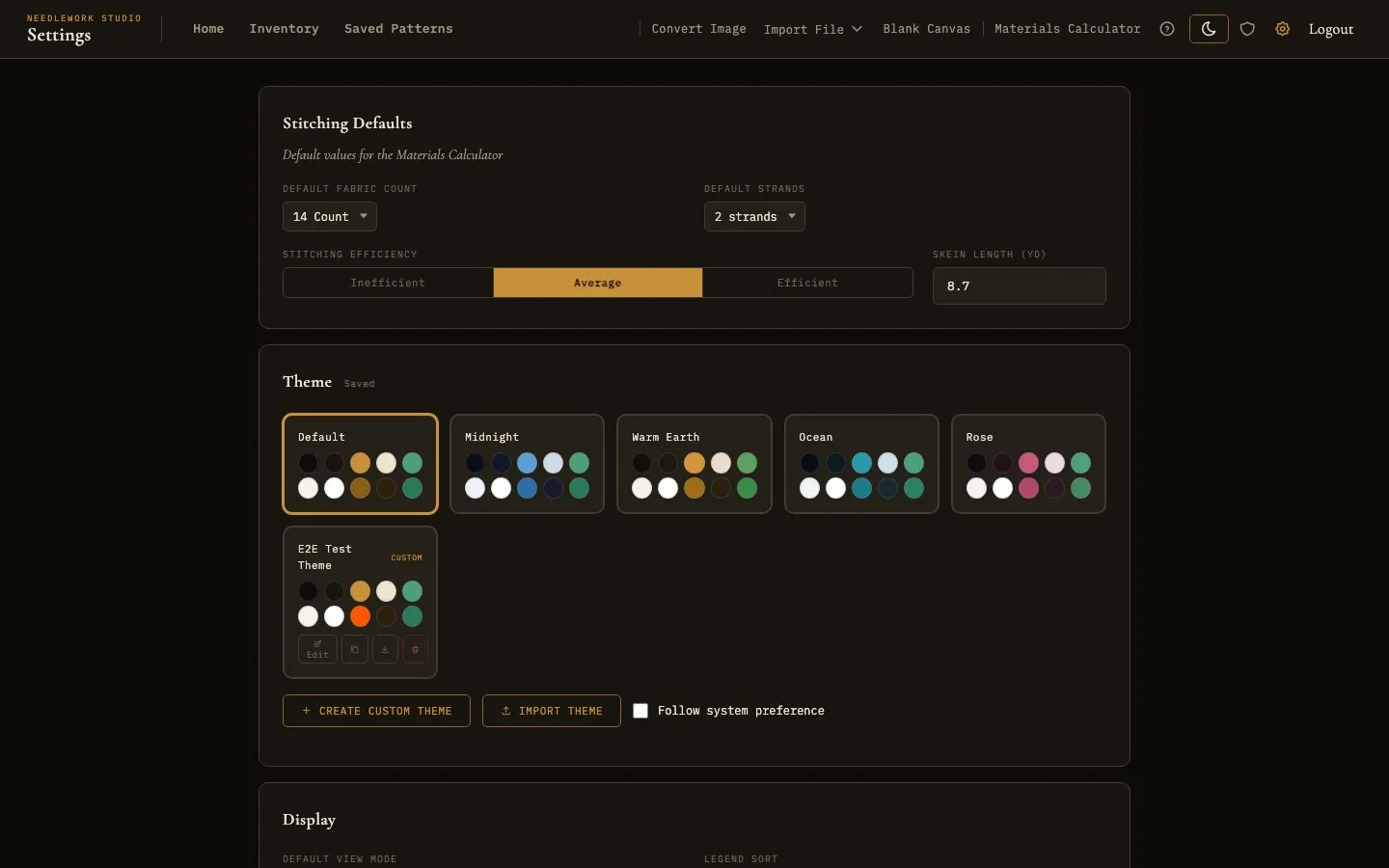
The theme picker in Settings with the six preset themes
Overview
Needlework Studio includes a full theming engine that lets you change the entire color palette of the application. Every theme has both a light and dark variant, and you can switch between them at any time using the sun/moon toggle in the header.
Themes work the same in the free and full versions. Your theme is saved with your account, so on a self-hosted server it follows you to any browser you sign in from.
Preset Themes
Six built-in themes are included:
- Default - The classic Needlework Studio look with warm gold accents on dark brown or warm cream backgrounds.
- Midnight - A deep navy blue palette with cool blue accents, ideal for late-night stitching sessions.
- Warm Earth - Rich, earthy browns and ambers for a cozy, natural feel.
- Ocean - Cool teal and blue-green tones inspired by coastal waters.
- Rose - Soft pink and rose-tinted hues for a warm, elegant aesthetic.
- High Contrast - A high-contrast accessibility theme (WCAG-AAA) with strong color separation for low-vision stitching.
To switch themes, go to Settings → Theme and click any preset card. The change applies instantly across the entire app.
For easier reading, Settings → Display also has:
- Text Size - Default, Larger, or Largest.
- App Zoom - Scales the whole app from 100% to 200%.
- Font - Default, Readable Sans, or OpenDyslexic, a font made for readers with dyslexia.
- Reduce italic text - Shows italic text upright.
- Highlight Strength - Soft, Normal, or Strong. Sets how much the other colors dim when you highlight one color in the pattern viewer.
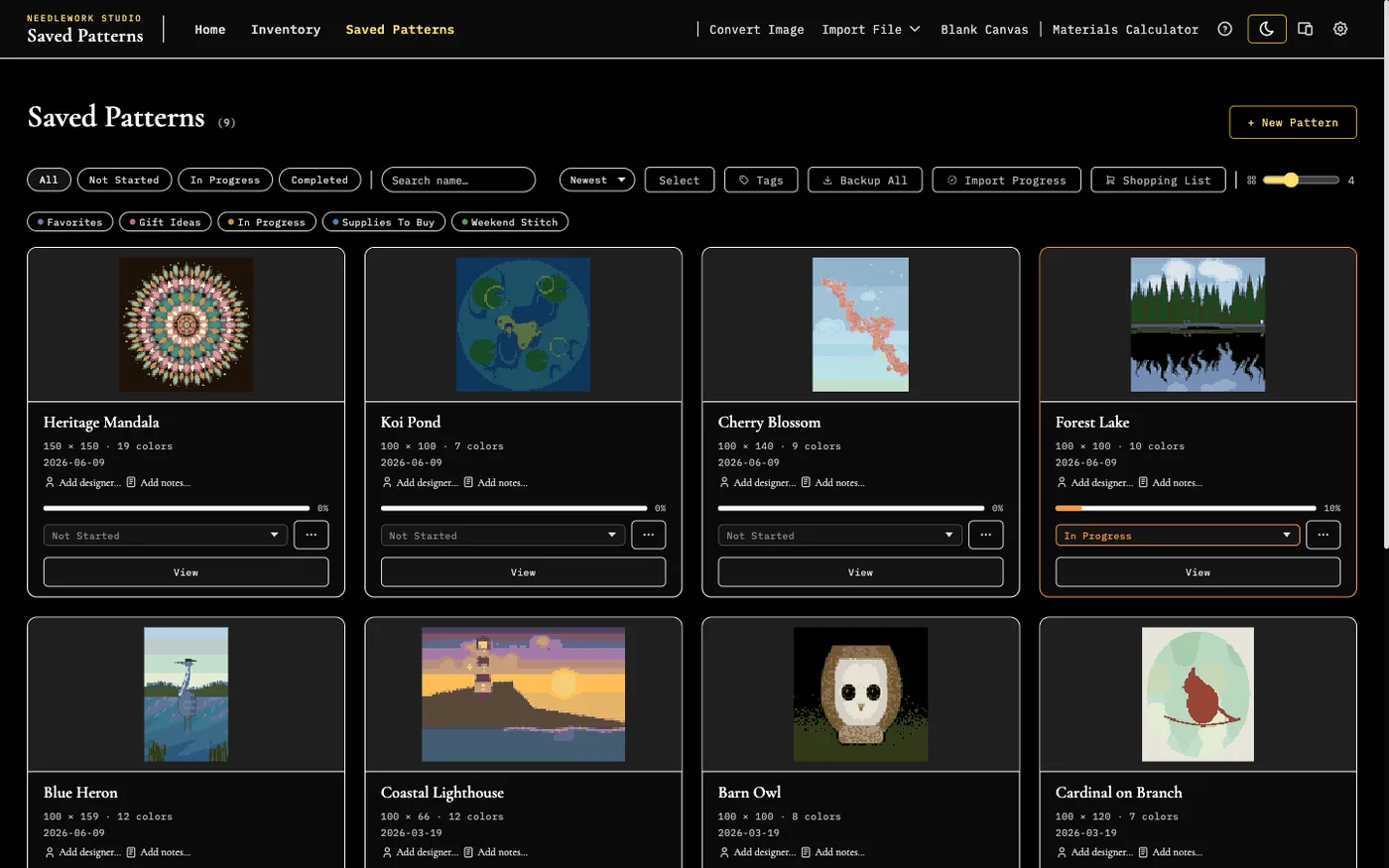
The High Contrast theme applied to the pattern gallery
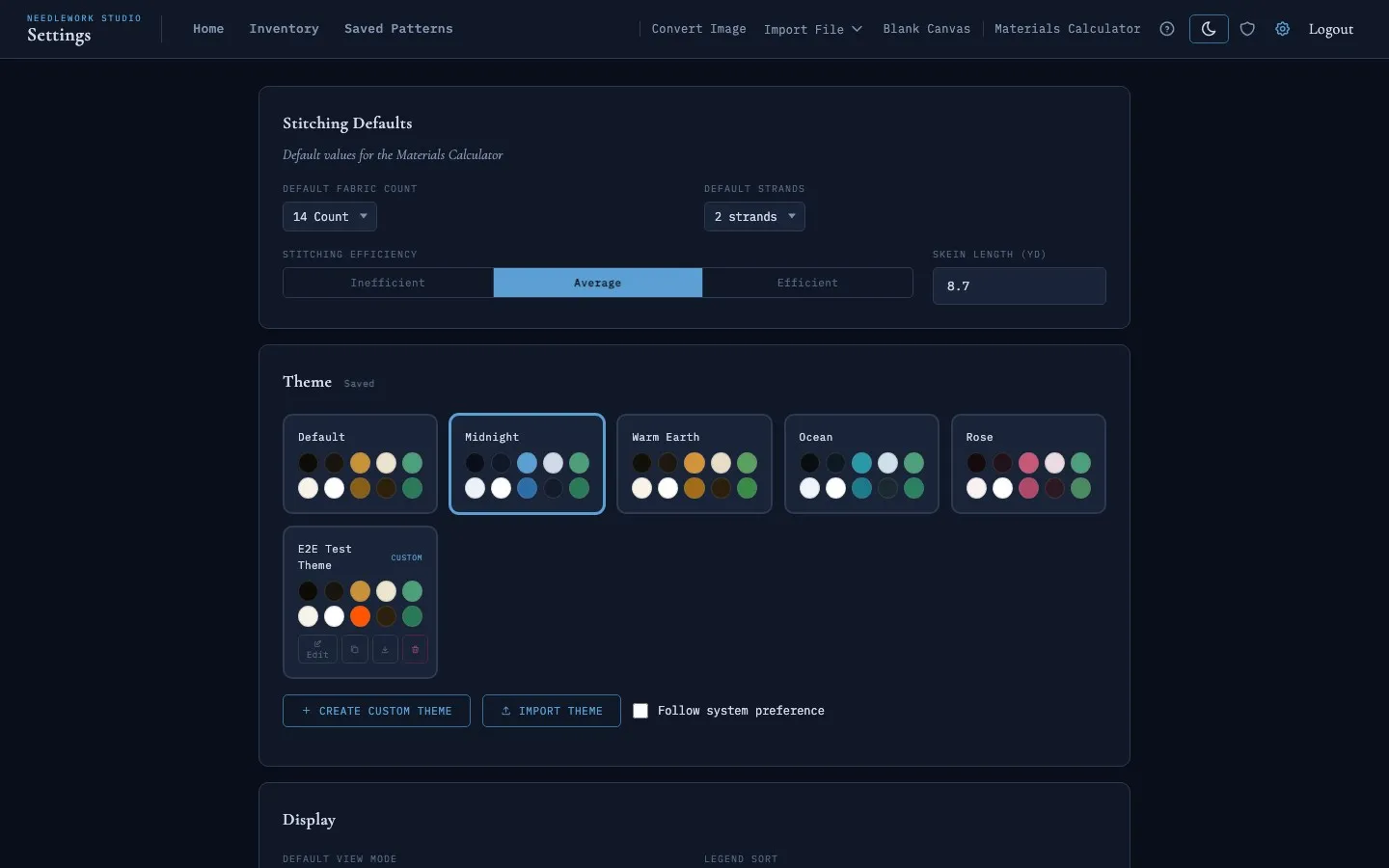
The Midnight theme with its deep navy palette and blue accents
Light & Dark Mode
Every preset theme has both a light and dark variant. You can switch between them in two ways:
- Header toggle - Click the sun/moon icon in the top navigation bar. The icon reflects your current mode (sun for light, moon for dark).
- Follow system preference - Check the "Follow system preference" box in Settings → Theme. The app will automatically switch between light and dark based on your operating system's appearance setting.
If you have "Follow system preference" enabled and manually click the sun/moon toggle, the system follow is automatically disengaged and you stay in the mode you chose.
Creating Custom Themes
You can create your own themes with fully customized colors:
- Go to Settings → Theme and click Create Custom Theme.
- Your currently active theme is cloned as a starting point.
- Enter a name for your theme in the text field at the top.
- Use the Dark / Light toggle to switch between editing the dark and light variants.
- Click any color swatch or type a hex code to change individual tokens. Changes preview live as you edit.
- Click Save Theme when you're happy with the result.
Custom themes appear in the theme grid alongside the presets, marked with a Custom badge. You can create up to 10 custom themes.
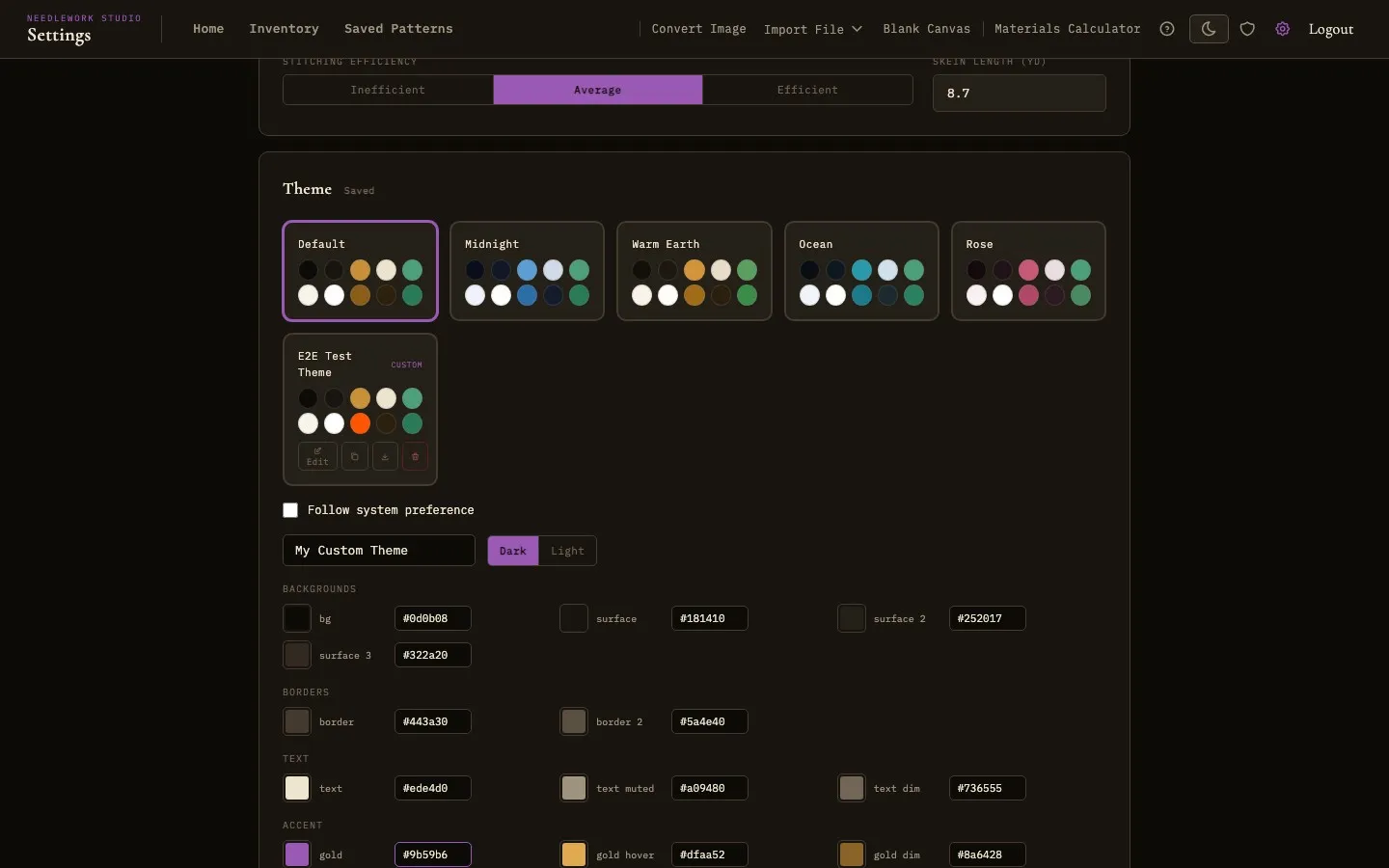
The custom theme editor with grouped color pickers and live preview
Color Token Groups
The color editor organizes tokens into logical groups:
- Backgrounds - Main background, surface layers (cards, panels, inputs).
- Borders - Divider lines and element borders.
- Text - Primary text, muted/secondary text, and dim/tertiary text.
- Accent - The primary accent color used for active states, links, and highlights (plus hover and dim variants).
- Status: Owned / Need / Skip - Colors for inventory status indicators and progress tracking.
Managing Custom Themes
Each custom theme card has four action buttons:
- Edit - Re-open the color editor to modify the theme.
- Duplicate - Create a copy of the theme (named "Theme Name Copy"). Useful for creating variations without losing the original.
- Export - Download the theme as a
.jsonfile that can be shared with others. - Delete - Permanently remove the custom theme. If it was your active theme, you'll be switched back to Default.
Importing Themes
To import a theme someone has shared with you:
- Go to Settings → Theme and click Import Theme.
- Select the
.jsontheme file from your device. - The imported theme appears in your grid, ready to use.
Theme files use the needlework-studio-theme format and include both the dark and light color variants.
The Color Picker
Everywhere you choose a color, you get Needlework Studio's own picker rather than the one built into your operating system. It has a saturation square, a hue slider, and a hex field, and it follows whichever light or dark theme you are using, so picking a color no longer means a bright system box opening over a dark app.
You will see it for the completed stitch tint, fabric color, custom thread colors, the editor's fabric swatch, legend colors, and the theme editor above. Click away to keep a color, or press Esc to cancel.
Completed Stitch Color
Finished stitches are dimmed in the pattern viewer so you can see at a glance what is left. The color used for that dimming is yours to choose. Click the round color button next to Mark Complete in the viewer's toolbar (it is on the zen bar too), or go to Settings > Display > Completed Stitch Color. The button shows the color in use. There are six presets and a custom color, and your choice applies to every pattern.
The default is the original light veil. It works well on most charts, but it can be hard to make out on white and pale threads, which is what this setting is for. Pick something with more contrast and finished areas separate clearly from the ones still to stitch.
Cross-Device Sync
Your active theme, light/dark mode preference, and all custom themes are saved to your account. On a self-hosted server, any browser you sign in from loads your theme automatically. Desktop Sync does not carry themes, so to use a custom theme on another computer, Export it and Import it there.
For instant load times without a flash of the wrong theme, the app also caches your theme in the browser's local storage. If the server has a newer preference (e.g., you changed themes on another device), it corrects the local cache on the next page load.
Tips
- When creating a custom theme, start from the preset that's closest to what you want - it saves time since you only need to tweak a few colors.
- Test both the dark and light variants of your custom theme before saving. The Dark/Light toggle in the editor lets you preview each side.
- Export your custom themes as a backup before resetting preferences, since "Reset All Preferences" removes custom themes too.