Thread Inventory
Browse, search, and track your embroidery thread and bead collection across DMC, Anchor, and Mill Hill.
Some features on this page require the Full Version.
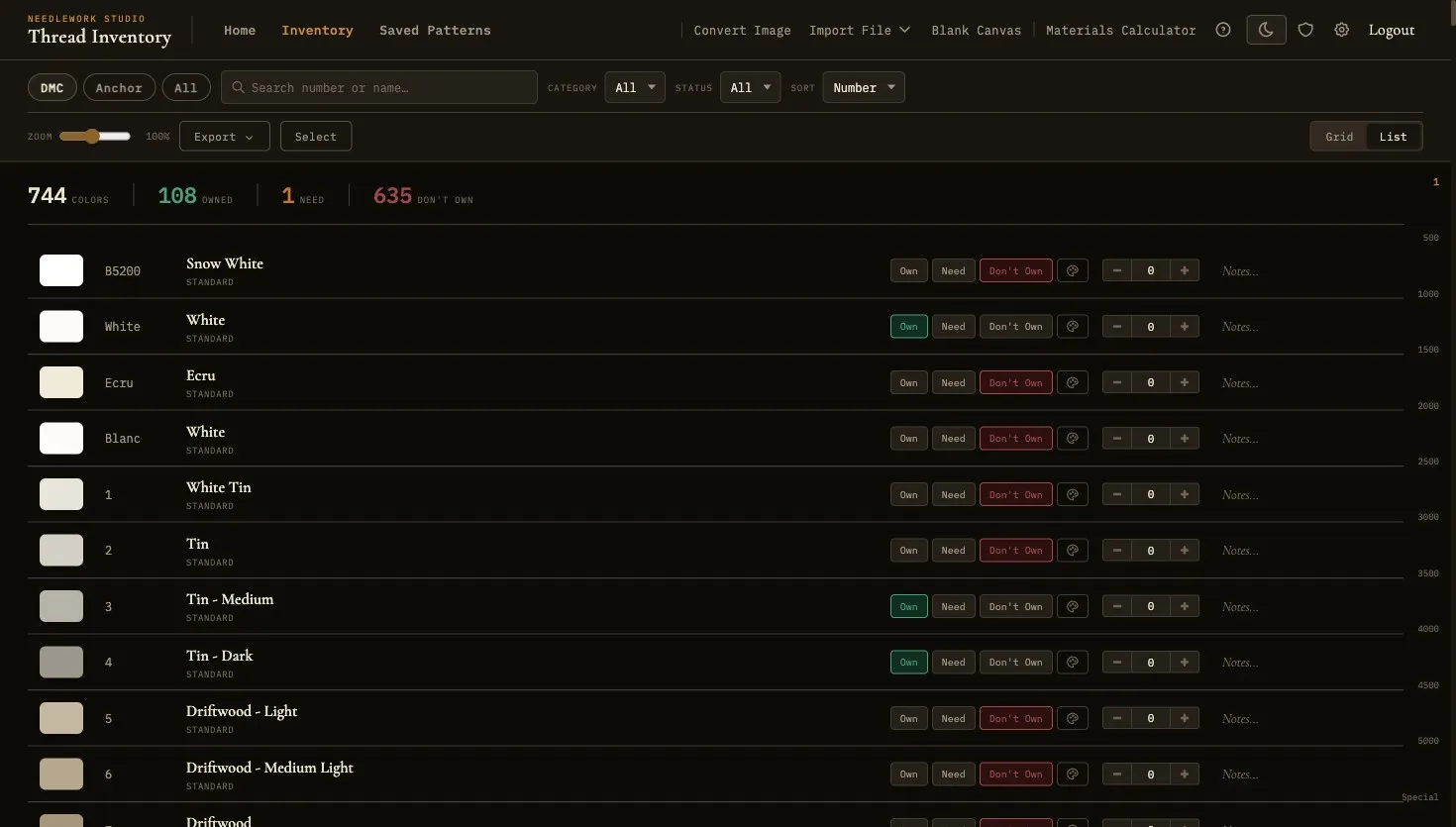
Thread inventory with search, filter, and status tracking across DMC, Anchor, and Mill Hill
Overview
The Thread Inventory ships with 744 DMC colors (510 standard stranded cottons plus satin, metallic, variegated, and other specialty threads), 441 Anchor stranded cotton colors, and the Mill Hill bead catalog across seven bead lines (Petite, Glass, Antique, Crayon, Pebble, Magnifica, and Frosted, around 370 colors). Each entry has an accurate color swatch, the official name, and the thread or bead number. Everything is ready to browse, search, and track from the moment you create your account.
The inventory serves two purposes: it acts as a reference catalog for all available threads, and it tracks which threads you personally own, need, or do not yet have. This information feeds into the materials calculator and helps you plan purchases for upcoming projects.
On the Free version you can mark up to 50 threads as Own or Need. The Full Version has no limit.
Stats Strip
At the top of the inventory page, a stats strip displays a summary of your collection at a glance. It shows four counts:
- Colors - The total number of colors in the catalog you are viewing.
- Owned - The number of threads you have marked as owned.
- Need - The number of threads you have flagged as needed.
- Don't Own - The number of threads with no ownership status set.
These counts update automatically as you change thread statuses, giving you an always-current snapshot of your inventory.
Searching
At the top of the inventory page, a search bar provides instant, real-time filtering as you type. You can search by:
- Thread number - Type a number like
310or3865to jump directly to that thread. Partial numbers work too: typing38will show all threads whose numbers start with 38. - Thread name - Type a color name like
ecru,cranberry, ornavyto find threads by their official color names. The search is case-insensitive and matches anywhere in the name.
Search results update instantly with each keystroke, so you can quickly narrow down the list without waiting for a page reload.
Filtering
Below the search bar, a set of filter controls lets you narrow the inventory by several criteria. Filters can be combined with each other and with the search bar for precise results.
Brand Filter
The brand filter offers these options:
- DMC - Show only DMC threads.
- Anchor - Show only Anchor threads.
- Mill Hill - Show only Mill Hill beads. Use the Thread Category filter to narrow further by bead line (Petite, Glass, Antique, Crayon, Pebble, Magnifica, or Frosted).
- All - Show every thread and bead combined. When All is active, each row displays a small brand badge so you can tell at a glance which brand it belongs to.
- Custom (Full Version) - Show only the threads you added yourself. See Custom Threads below.
This is useful when you work exclusively with one brand or want to browse and compare equivalent colors across brands.
Thread Category
Filter threads by their category classification, such as standard stranded cotton, metallic threads, or other specialty types. This helps you focus on the thread type relevant to your current project.
Ownership Status
Three ownership status filters let you quickly view subsets of your collection:
- Owned - Show only threads you have marked as owned. This gives you a quick overview of your current stash.
- Need - Show threads you have flagged as needed. Use this as a shopping list when visiting a craft store.
- Don't Own - Show threads with no ownership status set. These are threads you have not yet categorized.
Sort Options
The inventory controls bar includes a Sort dropdown that lets you reorder the thread list. Four sort options are available:
- Number - Sort threads by their thread number in ascending order. This is the default sort order.
- Name - Sort threads alphabetically by their official color name.
- Status - Sort threads by their ownership status (Own, Need, Don't Own), grouping threads of the same status together.
- Skeins (Full Version) - Sort threads by the number of skeins you have recorded, with the highest quantities first.
The selected sort order applies immediately and works in combination with any active filters or search terms.
Zoom Slider
The inventory controls bar includes a zoom slider that adjusts the size of thread cards (in grid view) or thread rows (in list view). The slider ranges from 60% to 150%, letting you shrink the display to fit more threads on screen or enlarge it for a closer look at color swatches. The zoom level applies to whichever view mode is currently active.
Status Tracking
Each thread in the inventory has a set of tracking controls that let you record your relationship with that color.
Ownership Buttons
Three single-click buttons let you set the status of any thread:
- Own - Click to mark this thread as part of your collection. The thread card will display a visual indicator showing it is owned.
- Need - Click to flag this thread as something you need to purchase. Useful for building shopping lists.
- Don't Own - Click to explicitly mark that you do not own this thread. This is the default state for all threads.
Clicking a status button is a single-click action - there is no confirmation dialog. You can change the status at any time by clicking a different button.
Skein Quantity
In the Full Version, you can track the number of skeins in your stash for threads you own. Use the + and − stepper buttons to adjust the count in quarter-skein increments (0.25), hold Shift while clicking to move a whole skein, or type a value directly into the number field. This precision lets you record partial skeins accurately. The quantity information is used by the materials calculator to determine whether you need to purchase additional skeins for a new project.
Notes
Each thread has an optional free-text notes field where you can record any additional information. Common uses include noting the store where you purchased a thread, recording a dye lot number, or leaving a reminder about a color substitution you have used in the past.
Similar Colors
Needlework Studio includes a perceptual color matching feature powered by the CIEDE2000 color difference algorithm. When viewing any thread, you can find the colors closest to it. The matches come from the same brand as the thread you started from, so a DMC color shows other DMC colors. A Show filter narrows the matches to All Types, Standard Only, or Specialty Only.
CIEDE2000 is an advanced color distance formula that accounts for how the human eye perceives color differences. Unlike simpler RGB distance calculations, it produces results that align closely with what you would judge as "similar" by eye. This is particularly useful for:
- Finding substitutes - If your local store is out of a specific color, the similar colors feature can suggest close alternatives.
- Building palettes - Discover colors that are close in hue but differ slightly in saturation or lightness, useful for shading and blending effects in pattern design.
Custom Threads
Beyond the built-in DMC, Anchor, and Mill Hill catalogs, you can add your own threads: hand-dyed floss, overdyes, a specialty brand, or a discontinued color you still keep in your stash. Custom threads live alongside the catalogs in your inventory, and you can stitch with them in the pattern editor.
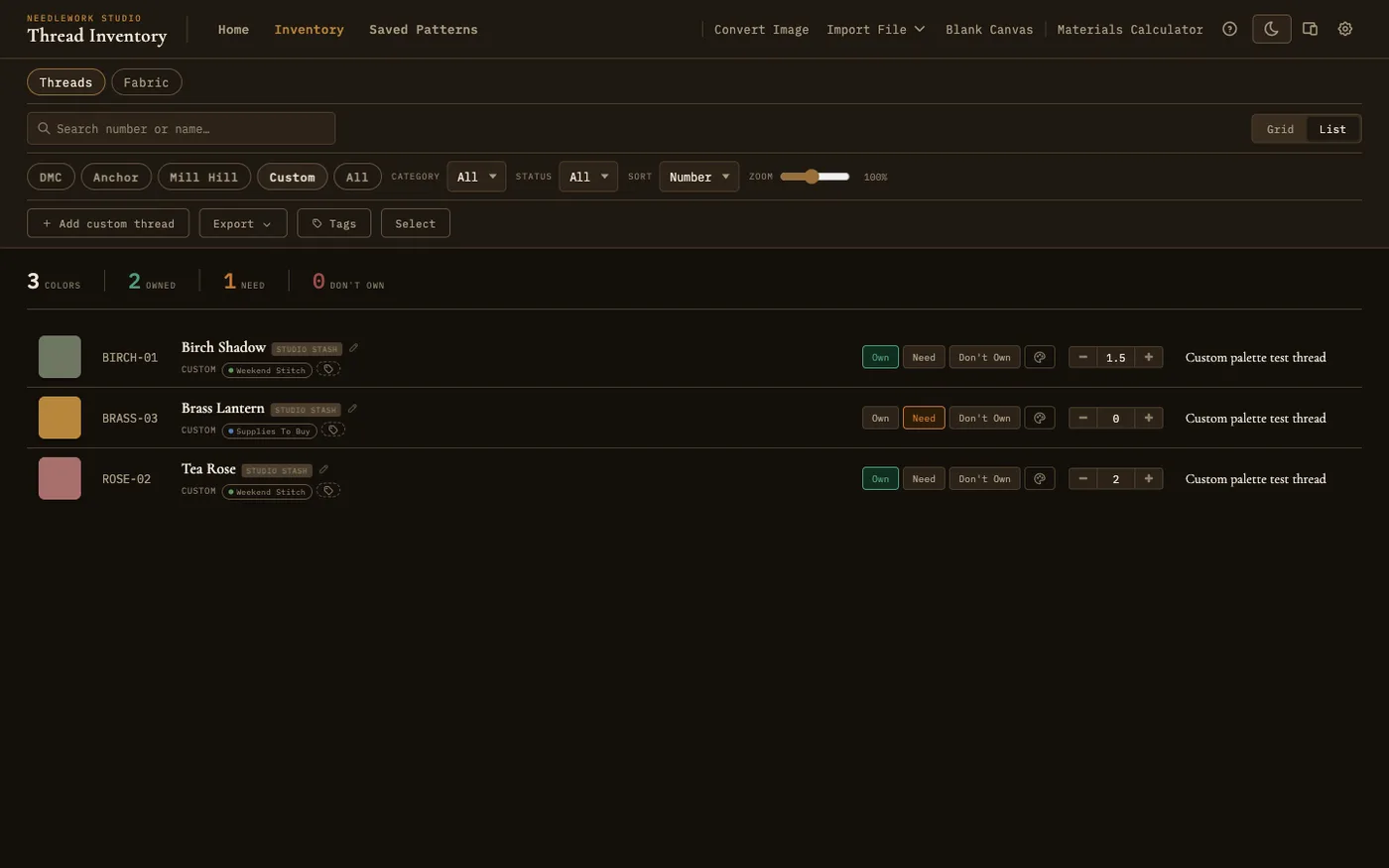
The Custom filter in the inventory, showing your own added threads
To add one, create a custom thread with a brand label, a name, an optional number, and a color. A dedicated Custom filter (on the inventory page and the home dashboard) shows just your custom threads, grouped by the brand you gave them. Custom threads carry the same ownership status, skein counts, and notes as catalog threads, and they sync across your devices when you use Desktop Sync (Full Version + Server).
Custom threads stay private to your account and are kept separate from the color matcher, so they do not appear in other threads' find-similar results or affect image conversion. Finding similar colors from a custom thread does work: it searches every catalog brand for the closest real floss. In Select mode you can bulk-delete your custom threads; built-in catalog colors cannot be deleted.
Custom threads are a full-version feature.
Views
The inventory can be displayed in two different view modes, and you can switch between them at any time using the view toggle buttons.
List View
Displays threads as a vertical list with one thread per row. Each row shows the color swatch, thread number, name, ownership status, and quantity. List view provides more detail at a glance and is better suited for inventory management tasks like updating quantities or reviewing your ownership status across many threads. List view is the default view mode.
Grid View
Displays threads as a grid of color swatch cards. Each card shows the thread color, number, and name. Grid view is ideal for visual browsing and quickly scanning large numbers of colors. It makes efficient use of screen space.
Bulk Operations
In both views, you can select multiple threads at once for bulk status changes. The workflow is:
- Enter selection mode - Click the Select button in the controls bar. Each thread will display a selection checkbox.
- Select threads - Click individual threads to select them, or click Select all visible to select every thread currently shown (respecting any active filters or search).
- Apply a bulk action - Once threads are selected, a bulk action bar appears with Own, Need, and Don't Own buttons. Click one to set that status on all selected threads at once. In the Full Version the bar also has Tag, and a Skeins box with + Add, - Subtract, and Set to to change the skein count on every selected thread.
- Clear selection - Click Clear to deselect all threads and exit selection mode.
Bulk operations are significantly faster than updating threads one at a time, especially when you return from a shopping trip with several new colors.
Export
The inventory controls bar includes an Export dropdown for getting your thread data in and out of the application:
- Print Shopping List (Full Version) - Opens a print-friendly page containing only threads with a "Need" status. The printed list includes thread numbers, names, and color swatches rendered as colored blocks. This is designed to take with you when shopping for threads at a craft store.
- Shopping List CSV (Full Version) - Downloads a CSV file containing only threads with a "Need" status. This is useful for importing your shopping list into a spreadsheet or sharing it digitally.
- Full Inventory CSV - Downloads a CSV file containing all threads in the inventory along with their current ownership status. This provides a complete export of your collection data for backup or analysis.
- Import Inventory CSV - Reads a CSV in the same layout as Full Inventory CSV and updates your statuses to match. Handy for restoring a backup or moving your stash to another computer.
Thread Tags
In the Full Version you can tag threads (for example "Christmas stocking" or "Lent to Mom") and filter the list by tag. Use the Tags button to manage your tags, and the Tag action in Select mode to tag many threads at once.
Jump Rail
On the right side of the inventory screen, a quick-jump rail displays a vertical strip of thread number markers. Clicking any marker scrolls the inventory directly to that section of the list, letting you navigate large thread collections without manual scrolling.
The jump rail adapts to your current view: it updates its markers based on the active sort order and selected brand, so the numbers always correspond to what is currently displayed. As you scroll through the inventory, the rail highlights the marker nearest to your current position to indicate where you are in the list.
On small screens (below 640px wide), the jump rail is hidden to preserve screen space for the thread list itself.
Fabric Inventory
A Threads | Fabric toggle at the top of the inventory page switches between your thread collection and a separate inventory of fabric. The Fabric view tracks each physical piece of cloth in your stash, so you always know what you have on hand when you start a project.
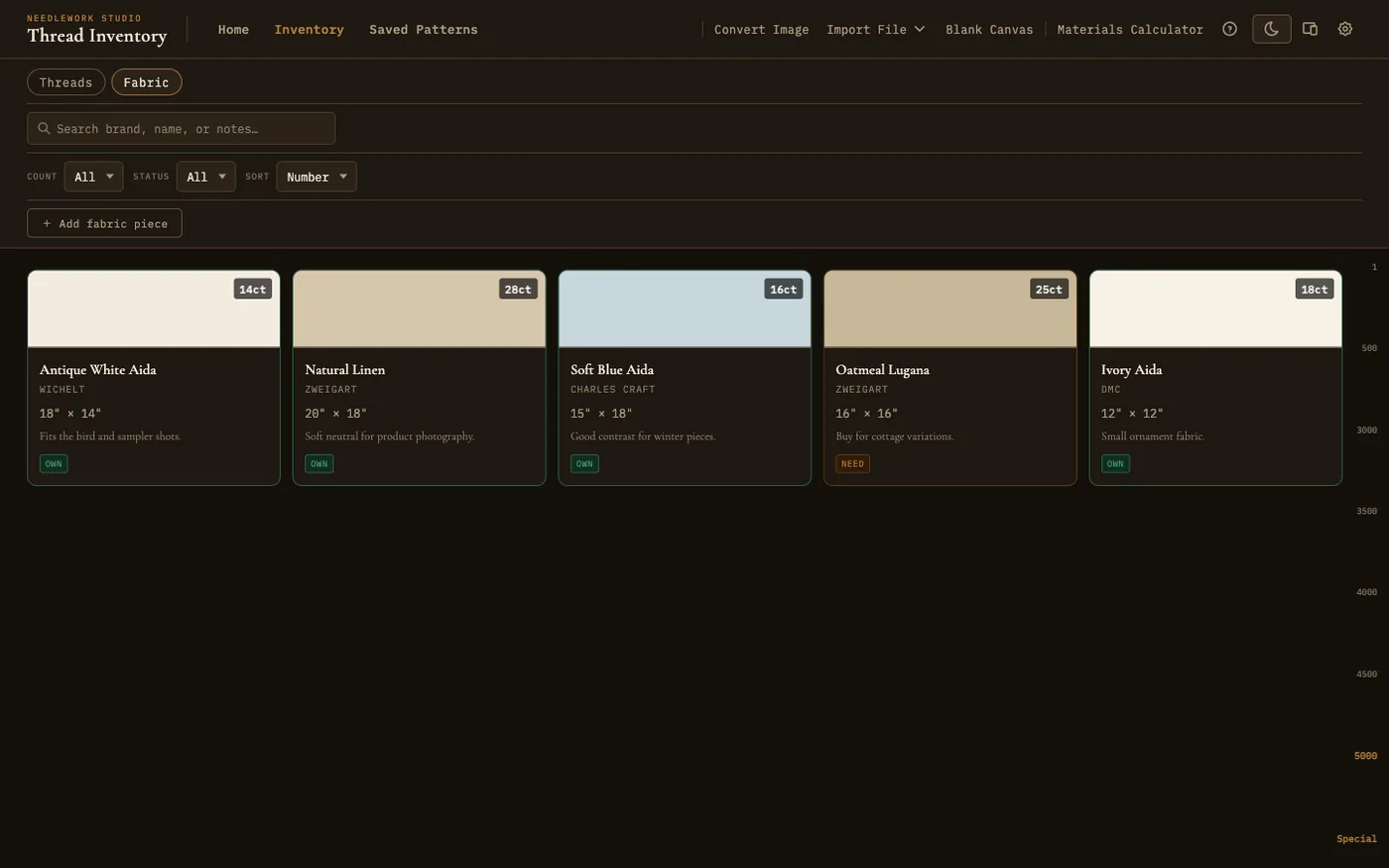
Each fabric piece records its brand, count, size, color, and status
Click Add fabric piece to record a piece. Each one stores:
- Brand and fabric name - free text, for example "Zweigart" and "Lugana 28ct, Cream".
- Count - the fabric count, in stitches per inch, picked from a list that runs from 6 to 32.
- Width and height - the size of the piece in inches, from 0.25 to 120.
- Color - a swatch shown on the piece's card.
- Status - Own, Need, or Don't own, the same statuses used for threads.
- Notes - any extra detail worth keeping.
Click a card to edit a piece, and use the search box or the status and count filters to find pieces in a large stash. The materials calculator reads this inventory: when you load a pattern, it lists the fabric pieces whose count and dimensions fit the design, so you can see at a glance whether you already own a suitable cut.
Fabric inventory is a full-version feature.