Share to Phone & Tablet
Open Needlework Studio on your phone, tablet, or another laptop over your home Wi-Fi. Browse, track stitches, edit, and keep patterns available offline.
This feature requires the Full Version.
Overview
Share to Phone & Tablet lets a phone, tablet, or another laptop on your home Wi-Fi connect directly to the Needlework Studio app running on your computer. The other device acts as a thin client. Your patterns stay on your computer and travel only between it and your own devices on your network, never through a cloud service. There is no account to create and nothing to configure on the remote device beyond scanning a QR code.
This is different from Desktop Sync. Desktop Sync keeps a full copy of your data on a server you run, or on another computer. Share to Phone & Tablet opens your already-running desktop to your home network, with no server required. Turning sharing on is also the first step when another computer joins this one.
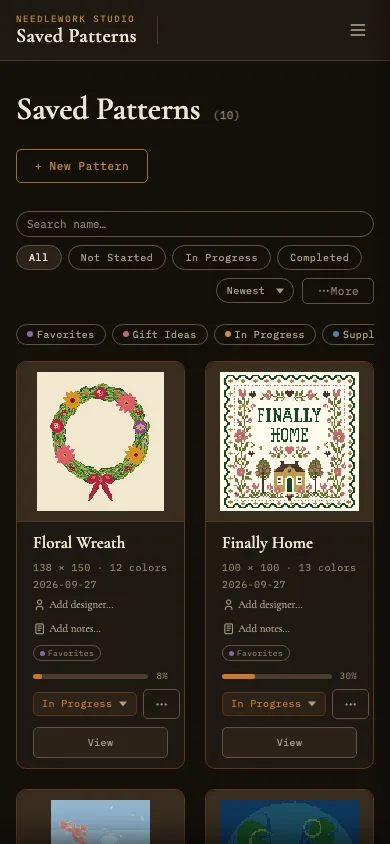
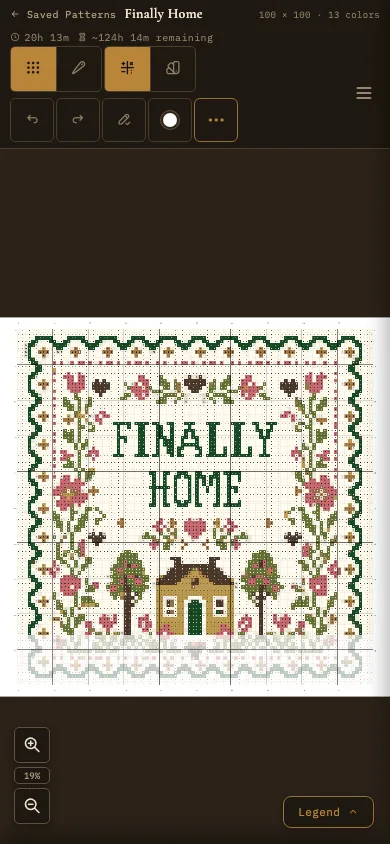
Your library and a pattern, on a phone
Setting Up Sharing
- Open the share page. In the desktop app, click the devices icon in the top bar (its tooltip reads Share to phone or tablet).
- Turn on LAN Sharing. Flip the toggle. The app restarts the local server in a few seconds so it can listen on your home network instead of just your computer.
- Scan the QR code. On the phone or tablet, open the camera app and point it at the QR code. Tap the link that appears.
- Accept the security warning. The first time a device connects, the browser shows This Connection Is Not Private. On an iPhone or iPad in Safari, tap Show Details → visit this website → Visit Website. On Android in Chrome, tap Advanced → Proceed. You usually only need to do this once per device. Android can forget it and ask again, and you will see the warning again if your computer's network address changes. The warning appears because the connection uses a self-signed certificate your computer generated for itself, rather than one from a certificate authority.
- You are paired. The device lands on your home page and can use the app immediately.
If your computer cannot create its certificate, the share page says so in a warning. In that case the connection is not encrypted, and anyone else on the same Wi-Fi could read what you open. Turn sharing off and on again to retry.
While sharing is on, a gold banner runs across the top of every page. You can close it with the X. The devices icon keeps a small dot lit so you can still tell sharing is on.
Both devices must be on the same Wi-Fi
Sharing is local-network only. Cellular and away-from-home access are not supported. If you have a guest network or a separate 5 GHz / 2.4 GHz SSID, both devices need to be on the same one.
Pairing tokens expire
The QR code embeds a one-time token that is valid for 5 minutes and can only be used once. If you let the share page sit for a while, tap New QR Code to mint a fresh one. After a successful pair, the QR is consumed.
What you can do on a paired device
- Browse your full library and open any pattern.
- Track stitches by tapping cells. Progress syncs back to your computer in the background.
- Edit patterns. Draw, erase, change palette, adjust dimensions. Saves go back to your computer.
- Save patterns for offline use so a specific pattern keeps working even when your computer sleeps or Wi-Fi drops.
Offline Mode
Each pattern can be saved for offline use individually. On the Saved Patterns page, open the pattern card's … menu and choose Save for offline. The pattern is stored in the browser's storage on the device, and from then on it loads even if your computer is asleep or you leave the network.
Stitch progress made while offline is recorded locally and pushed back to your computer the next time the device reconnects.
Editing offline
Edits made offline are autosaved on the device every few seconds. When the device reconnects, the autosaved version is pushed to your computer automatically. If you closed the tab while offline with unsaved edits, the next time you open that pattern you will see a recovery prompt offering to restore your work.
What does not work offline
Importing new patterns, browsing the full library, and any feature that depends on data your computer has not yet sent to the device require a live connection. The offline experience is centered on patterns you have explicitly saved for offline plus the work you do on those patterns.
Managing Paired Devices
The share page on your computer lists every device that has paired and is still active, under Paired Devices. For each one you can:
- Rename it by clicking the device label. iOS often does not advertise a useful device name on first connect, so the default is "Paired Device" and you may want to change it to something like "Trent's iPad."
- Revoke it to immediately sign that device out. You are asked to confirm first. The next request from that device will fail and the user will need to scan a new QR to pair again.
Turning LAN Sharing off entirely also revokes every paired device at once.
Security
Sharing is designed to expose your patterns to your own devices, not to the broader network.
- Pairing requires a fresh QR code generated on your computer. Each one lasts 5 minutes and works once. A device on your Wi-Fi cannot connect without one.
- Paired devices have your account access for everyday use (viewing, editing, stitching), but cannot manage sharing itself, change your password, reach the admin area, or unpair Desktop Sync. Those controls are restricted to your computer.
- The connection is encrypted with a self-signed certificate your computer generated. The certificate is unique to your machine and is regenerated if your network changes.
- DNS rebinding is blocked. Requests reaching your computer with an unrecognized hostname are rejected so a malicious site cannot use your browser to reach the local server.
- Turning sharing off rebinds the local server back to your computer only. It is no longer reachable from any other device on your network.
Troubleshooting
If a phone or tablet hangs forever on the QR scan or shows a connection error, the cause is usually a Wi-Fi setting on that device rather than a problem with the app. The most common fix is turning off iOS Private Wi-Fi Address for your home network, since many home routers (mesh systems in particular) drop or misroute packets to the randomized MAC addresses iOS uses by default.
If you scan the code with a separate QR scanner app, it may open the link inside its own built-in browser. Pairing there would leave the phone signed in only inside that app, so the page asks you to open the link in your real browser instead. Scanning with the phone's own Camera app avoids this.
If your computer has more than one network address, the share page lists them under the QR code. If the phone will not connect, try another address from that list.
For the full troubleshooting checklist, see the LAN Share section of the Technical FAQ.