Image Converter
Turn any photo or image into a counted cross-stitch chart.
Some features on this page require the Full Version.
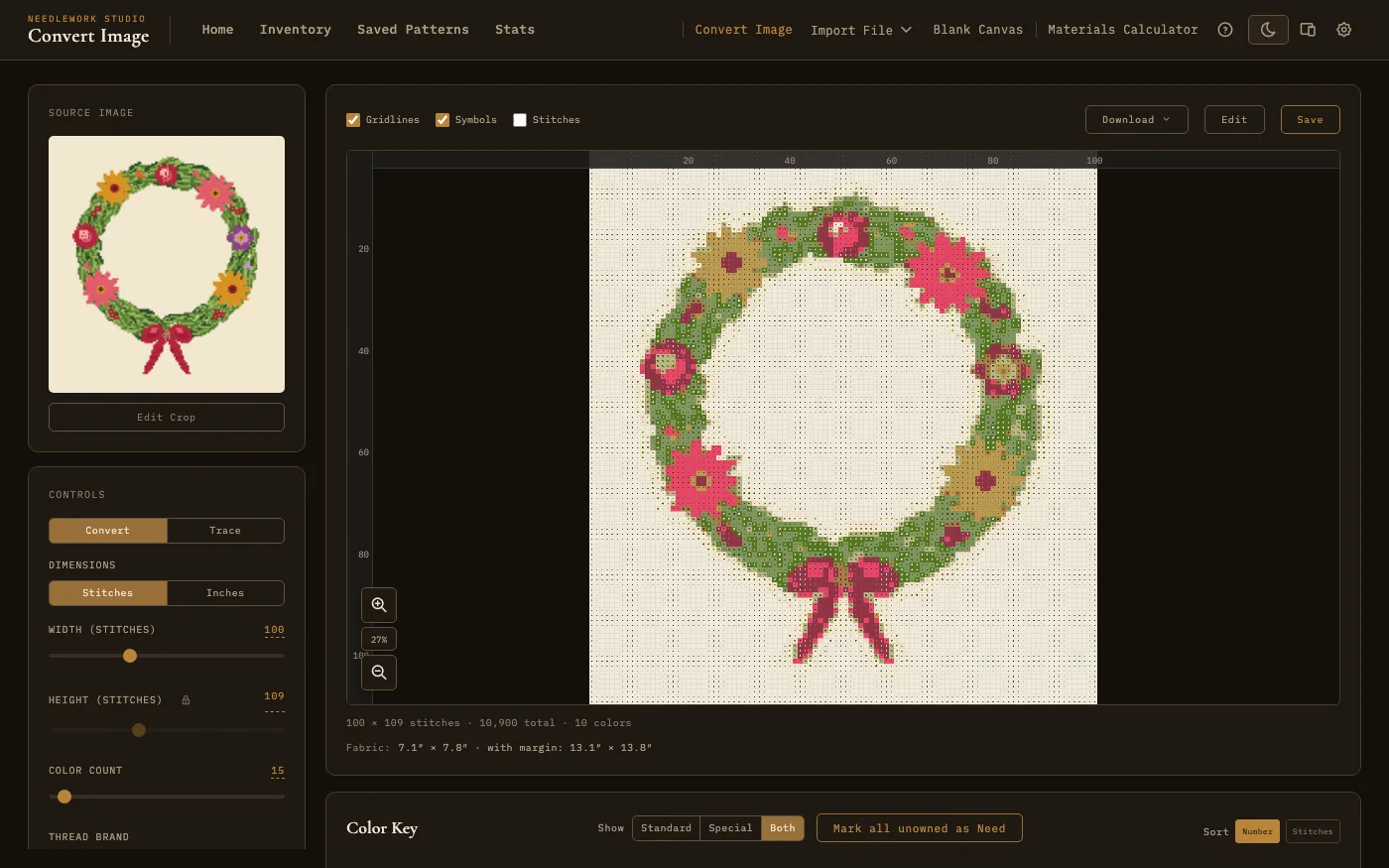
The image converter previewing a picture as a counted cross-stitch chart
Overview
The image converter turns a photograph or any image file into a counted cross-stitch chart. It reduces the image to a grid of stitches, matches every cell to the closest thread in the brand you choose (DMC, Anchor, or Mill Hill) using CIEDE2000 color science, and builds a complete pattern with a color legend and chart symbols. Open it from Convert Image in the navigation bar.
A live preview updates as you work, so you can see how the photo translates to stitches before you commit to a conversion.
This page covers the controls in detail. For a shorter walkthrough of how to convert a photo to a cross-stitch pattern, including guidance on picking a grid size and color count, see the overview page.
Loading an Image
Drag a file onto the drop zone, or click the drop zone to browse for one (on a touch screen, tap it). JPEG, PNG, GIF, and WebP files are supported, up to 10 MB.
Photos from a phone come in the right way up, even when the phone saved them sideways with a note saying which way to turn them. If a photo cannot be converted, the page tells you why and offers Try again and Choose another image.
Once a file is loaded you have two choices:
- Convert Image - The app builds the chart for you, as described on the rest of this page.
- Trace It Myself (Full Version) - You get a blank pattern at the size you choose, with your image underneath to draw over. Set the size and crop with the live preview first. A Convert / Trace switch at the top of the controls lets you change your mind later.
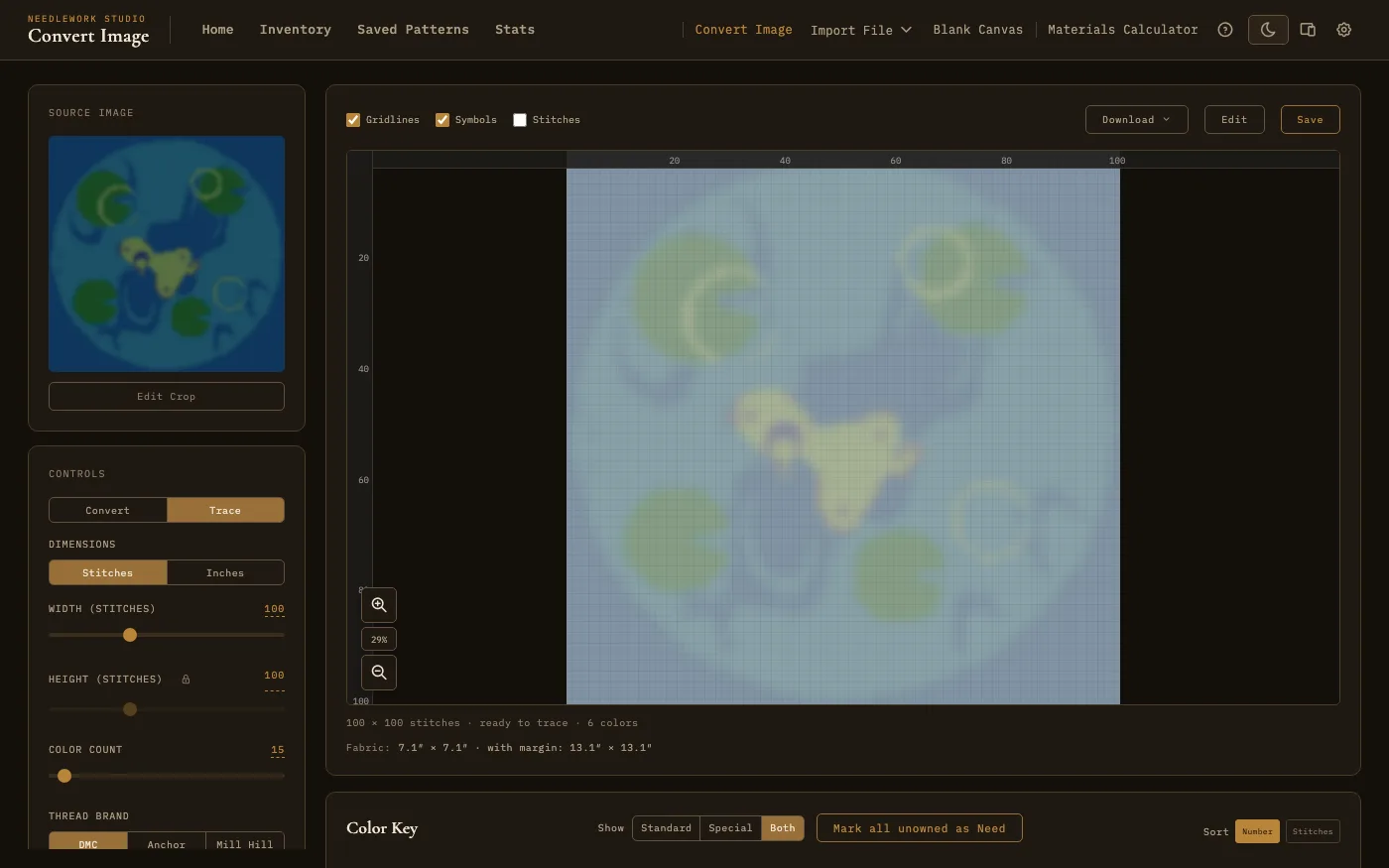
Trace It Myself gives you a blank pattern with your picture underneath to draw over
Grid Size
The grid size sets how many stitches wide and tall the finished pattern will be. Use the width and height sliders, or click the value to type an exact number. Switch Dimensions from Stitches to Inches and pick a fabric count to size the pattern by its finished size instead. A larger grid captures more detail but takes longer to stitch and uses more fabric.
The height is locked to your photo's shape by default, so the picture is never squashed or stretched. Click the lock beside the height to set it yourself.
On the Free version the grid is capped at 75×75 stitches. The Full Version raises the cap to 250×250. A tall photo that would need more rows than the cap allows is made narrower instead, so it keeps its shape, and a note under the sliders tells you when that happened.
Color Count
The color count limits how many distinct thread colors the converter may use. Fewer colors give a simpler, bolder result that is faster to stitch; more colors capture subtle shading and gradients. Every color is matched to a real thread, so the finished chart is always stitchable.
The Free version allows up to 30 colors. The Full Version allows up to 100.
Choose the Thread Brand to match against, and a Palette: Standard threads only, Special threads (metallic, satin, variegated, and the like) only, or Both.
Adjustments
Before generating the chart, you can fine-tune the source image:
- Contrast and brightness - Adjust the tonal range so the conversion picks up detail in shadows or highlights that would otherwise be lost. Contrast runs from 0.5 to 2.0 and brightness from 0.5 to 1.5, with 1.0 meaning no change.
- Crop - Click Edit Crop to focus the pattern on part of the image. The crop can be a rectangle, a square, an ellipse, or a circle.
- Add Outlines (Full Version) - Adds backstitch outlines around the shapes in the picture.
Pixel Art
If your source image is already pixel art, enable Pixel art mode. Instead of resampling the image, the converter maps each existing pixel directly to one stitch, preserving crisp edges and exact colors. Turning it on unlocks the height and switches dithering off. The first time you turn it on, the size jumps to the image's own pixel size (when that is between 25 and 250). Turning it off locks the height to the image's shape again.
Dithering
Dithering blends colors by scattering stitches of neighboring shades, which can smooth gradients when you are working with a limited palette. Dithering is a Full Version option, and it is on by default there.
Editing the Result
After conversion, the result appears as a preview beside the controls, with checkboxes for Gridlines, Symbols, and Stitches. Change a setting and the preview updates. Click Edit to refine the chart by hand before saving: you can change any color's chart symbol with the symbol picker and make changes with the full set of drawing tools. The trace tool can also load the original photo as a low-opacity underlay so you can stitch detail back in by hand.
The Download menu saves the chart straight to a PNG image, or a PDF document in the Full Version, without saving it as a pattern first.
Saving the Pattern
When you are happy with the result, click Save. Once it is saved, an Open in Viewer button takes you straight to the new pattern. The converted pattern joins your saved patterns and behaves exactly like any other pattern: you can open it in the Pattern Viewer, track stitching progress, estimate thread with the Materials Calculator, and export it in any supported format.