Desktop Sync
Keep your patterns and thread inventory in step between the desktop app and a Needlework Studio server you run yourself, or directly with another computer running the app.
Everything on this page needs the Full Version + Server license. The Sync button does not appear without it.
Overview
The Needlework Studio desktop app can operate entirely offline as a standalone application, but it also supports bidirectional synchronization with a self-hosted Needlework Studio server. When sync is configured, your data flows in both directions - changes made on the desktop are pushed to the server, and changes made on the server (or from another synced desktop) are pulled to the desktop.
This means you can design patterns on your laptop, review them on your phone through the server's web interface, and track stitching progress from either device. All data stays in sync automatically.
You do not need a server to keep two computers in step. One desktop can sync directly with another on the same network. See Syncing With Another Computer below.
Setting Up Sync
To pair the desktop app with a server:
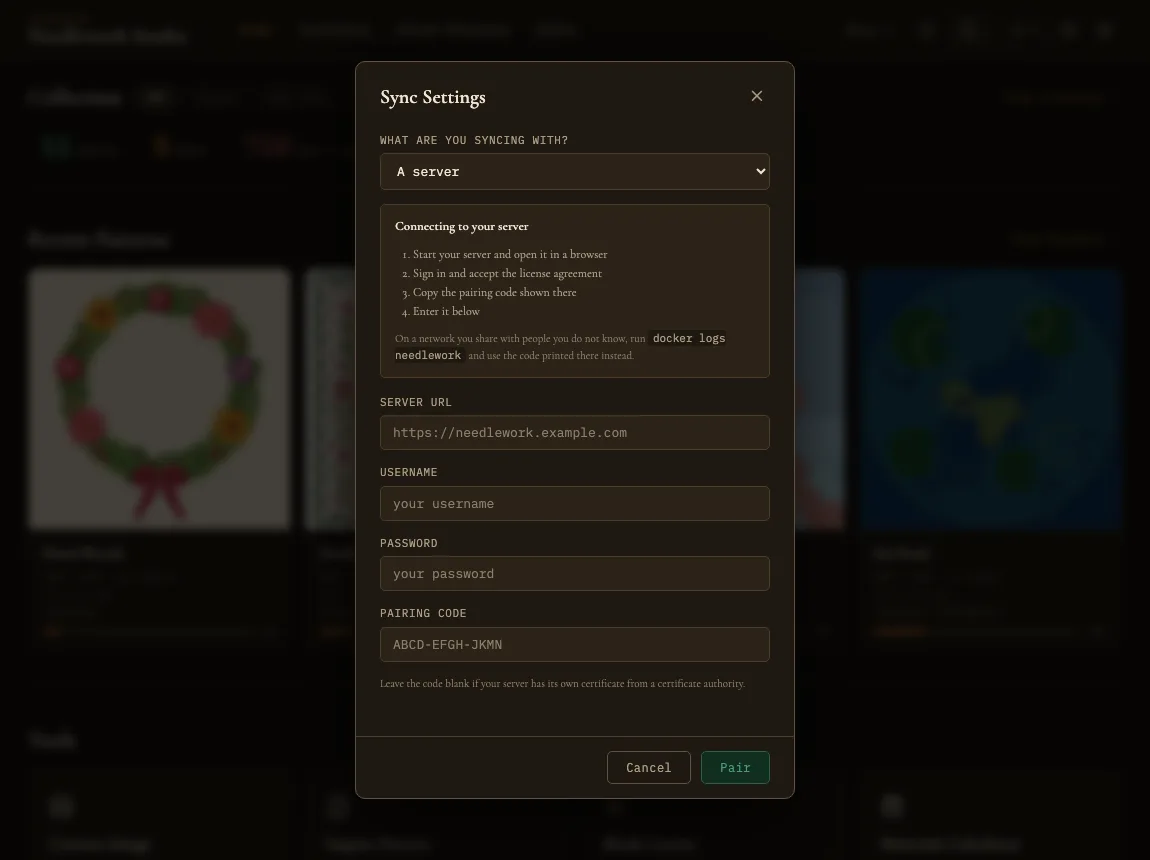
Sync Settings, connecting to a server
- Open the sync panel - Click the Sync button (the cloud icon) on the right side of the top bar. This opens the sync window. If it asks what you are syncing with, choose A server.
- Enter the server URL - Type the full URL of your Needlework Studio server instance (for example,
https://needlework.example.comorhttps://192.168.1.50:6850). The URL should point to the root of the application, not to a specific page. It has to start withhttps://. The only exception is a server running on this same computer, which can usehttp://localhost. - Enter your credentials - Provide the username and password for your account on the server. These credentials are used only once during the pairing process to authenticate and request an API token.
- Enter the pairing code, if your server asks for one - A server on your own network that makes its own certificate has a pairing code. Open the server in a browser and sign in. The code is shown on the license agreement page you see the first time you sign in, and on the server's Settings page any time after that. It is also printed in the container's startup output. See Deployment for where to find it. A server behind a reverse proxy with a domain name does not need one, and the field can be left empty.
- Pair - Click the pair button. The desktop app sends your credentials to the server, which validates them and issues an API token. This token is stored securely on the desktop and used for all subsequent sync operations.
Why the Pairing Code Exists
A server that made its own certificate is not vouched for by anyone your computer already trusts, so on its own the desktop app cannot tell your server apart from something else answering on the same address. The pairing code closes that gap. It describes the server's certificate, and the desktop checks it before your username and password leave your computer. If it does not match, nothing is sent.
Because the code is checked first, the desktop app will not pair with a server on your own network without one. If you leave the field empty for a local address, it will ask you for the code rather than sending your credentials anyway.
After pairing, the desktop keeps checking that certificate on every sync. If it ever changes, syncing stops and you are told. That happens if the server was reinstalled, in which case you disconnect and pair again with its new code. It also happens if something is sitting between you and the server, which is worth understanding before you reconnect.
Security Note
Your password is not stored on the desktop after pairing. It is sent to the server once to obtain an API token, and then discarded. The desktop keeps the API token, plus your username so the sync window can show which account is paired. The token provides the desktop app with the ability to read and write your data on the server without needing to store your credentials. If you are concerned about token security, you can revoke it at any time by unpairing (see below).
Server Requirements
To use sync, you need a running Needlework Studio server that is accessible from the machine running the desktop app. The server can be on your local network (accessible by IP address) or exposed to the internet with a domain name. If you have not set up a server yet, see the Installation and Deployment guides.
Syncing With Another Computer
Two computers can sync with each other directly, with no server in between. One computer holds your patterns and shares them. The other joins it.
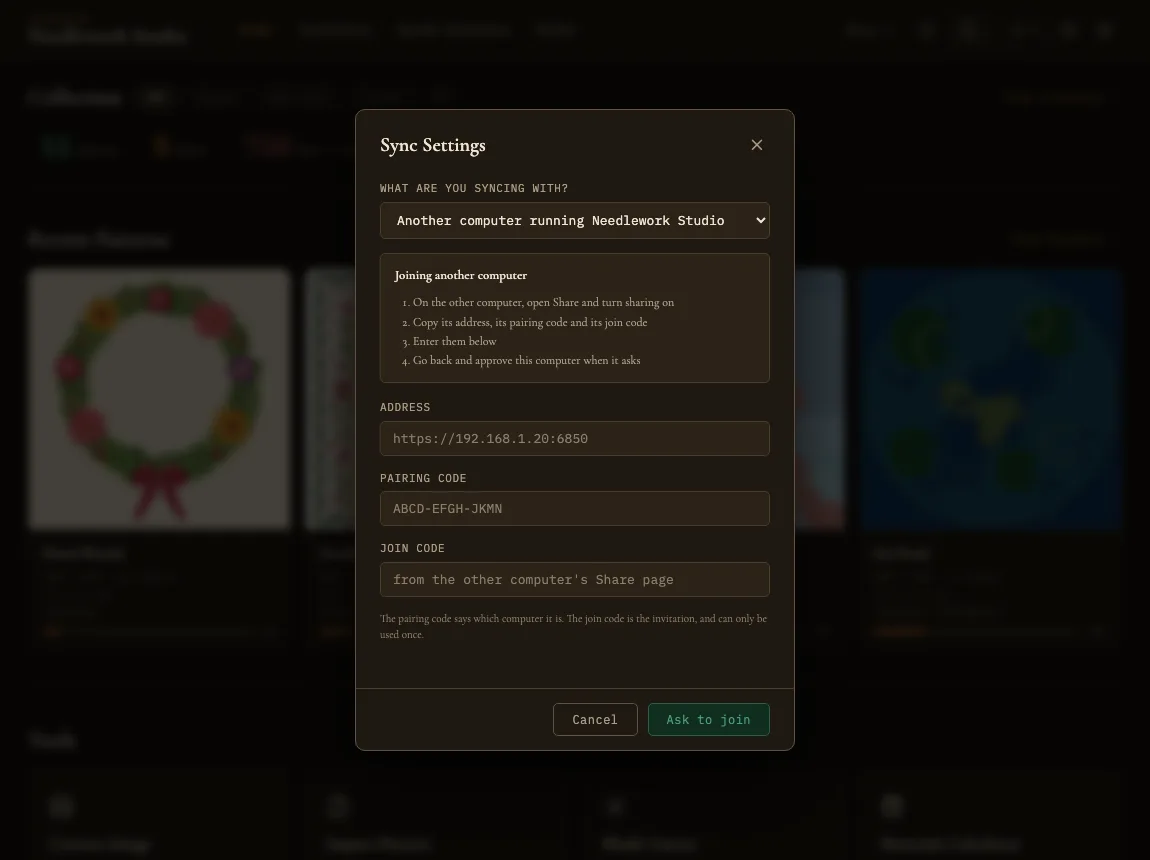
Sync Settings, joining another computer
- On the computer that holds your patterns - Open Share and turn sharing on. The page shows an Another computer box with three things: an address, a pairing code, and a join code.
- On the other computer - Click Sync, choose Another computer running Needlework Studio, and type in the address, the pairing code, and the join code. Then click Ask to join. The window shows six digits and waits.
- Back on the first computer - The request appears under Devices waiting to pair on the Share page. Type in the six digits the other computer is showing, choose what it is allowed to do, and click Approve. If you do not recognize the request, click Not me.
When you approve, choose Everything. The other choice, View and stitch, is meant for phones and tablets. If you pick it for a computer, the join does not finish. Press New code on the first computer and start the join again, and remove the leftover entry under Paired Devices.
If the two computers can see each other on the network, the other computer is listed under On this network when you choose to join. Click it to fill in the address. You still type the pairing code and the join code yourself. Some mesh Wi-Fi systems hide computers from each other, so if nothing is listed, type the address by hand.
The join code works once and lasts five minutes. The Share page counts it down, and New code makes a fresh one. Once joined, the two computers keep each other up to date whenever both are running: patterns, stitching progress, thread and fabric inventory, tags, and reference images, in both directions. Both computers have to be awake and on the same network. A computer that another computer has joined cannot itself join a third one. Sharing to a phone or tablet is fine alongside either.
How Sync Works
Synchronization transfers data between the desktop app and the server to keep both copies up to date.
Automatic Sync
When the desktop app is paired, it syncs on its own. A full sync runs each time you open a page in the app, and again every seven minutes while the app is open. This pulls any changes from the server (such as patterns you created via the web interface) and pushes any local changes that have not yet been synced. Stitching progress goes out a few seconds after you stop marking. You do not need to take any action.
Manual Sync
You can trigger a sync at any time by clicking the Sync Now button in the sync panel. This is useful if you have just made changes on the server and want them to appear on the desktop immediately without restarting the app, or if you want to ensure your latest desktop changes are pushed to the server before switching devices.
What Syncs
The sync process covers all of the core data in Needlework Studio. Sync operates in two separate phases:
- Full sync - Transfers patterns (grid data, legend, stitches, thumbnails, metadata), reference chart pages, thread inventory, stitching history, and deletions between the desktop and server. This is the heavier operation. It runs when you open a page, every seven minutes, and when you click Sync Now.
- Progress sync - A lightweight, independent phase that transfers only stitch progress data (stitched cells, marked backstitches, knots and beads, place markers, per-color completion, and accumulated time). Because it carries a much smaller payload, progress sync can run more frequently and finish faster, so your stitching progress stays up to date across devices without waiting for a full sync.
Both phases are bidirectional - changes are pulled from and pushed to the server. The two phases can run independently of each other.
Full Sync: Saved Patterns
During full sync, all saved patterns are synced, including:
- Grid data - The complete stitch grid with all full stitch placements and colors.
- Legend - The thread color legend with DMC/Anchor thread references, symbols, and color definitions.
- Part stitches - Half stitches, quarter stitches, and three-quarter stitches with their positions and orientations.
- Backstitches - All backstitch lines with start and end coordinates and thread color assignments.
- French knots - All French knot positions and their thread color assignments.
- Thumbnails - Pattern thumbnail images for display in the gallery.
- Metadata - Pattern name, designer, status (Not Started / In Progress / Completed), creation date, and modification timestamps.
Full Sync: Thread Inventory
Your thread inventory data is synced across devices during full sync, including:
- Ownership status - Whether each thread is marked as Own, Need, or Don't Own.
- Skein quantities - The number of skeins recorded for each thread.
- Notes - Any free-text notes you have attached to individual threads.
- Custom threads - Threads you have added yourself.
- Fabric stash - The fabric pieces you have recorded.
Pattern tags and each pattern's designer name sync too.
Full Sync: Deletions
When you delete a pattern on one device, that deletion is propagated to the other device during the next full sync. The pattern will be removed from both the desktop and the server. Deletions are tracked so that a deleted pattern does not reappear from the other device's copy.
Full Sync: Reference Chart Pages
Reference chart pages travel with the pattern they belong to. Import a chart on one computer and the pages appear on your other computers and on the server, images included, with the same placement, size, rotation, crop, and opacity you set.
Images are larger than the rest of a pattern, so a page that has not finished transferring fills in on the next sync rather than holding up everything else. If a chart looks like it is missing pages just after a sync, give it another round.
Reference pages only sync between computers running a version that understands them. Update the app everywhere you stitch, and if you run your own server, update the server before your desktops.
Full Sync: Stitching History
Your day by day stitching history belongs to your account rather than to one computer. Days you stitched on the desktop show up on the laptop's chart, on the days they actually happened, and your streak and finish estimates count them too.
History travels with the regular full sync, so give it a moment to catch up after you switch machines. See Stats for what the history is used for.
Progress Sync
Progress sync runs as a separate, lightweight phase and transfers only stitch progress data. This includes:
- Stitched cells - Which cells have been marked as stitched in the pattern viewer.
- Cleared cells - Cells that were previously stitched but have been unmarked.
- Backstitches, knots, and beads - Specialty stitches you have marked as done, tracked separately from full crosses. See Pattern Viewer.
- Place markers - Markers you have placed on the pattern to track your position.
- Per-color completion - Which DMC colors have been fully completed.
- Accumulated time - Total stitching time tracked for the pattern.
Because progress sync carries only this compact data, it is significantly faster than a full sync and can run independently for quicker updates when you are actively stitching.
Conflict Resolution
In cases where the same piece of data has been modified on both the desktop and the server since the last sync, a conflict occurs. How it is settled depends on what changed.
- Stitching progress is merged square by square. Each square keeps whichever change was made most recently, so if you unmark a square on one device after marking it on the other, it ends up unmarked.
- Pattern edits normally go to the more recent change. But if this computer has an edit that has not synced yet, and the other copy is different, this computer's version is kept rather than lost. You will see a message saying a pattern had different edits on another device and this device's version was kept.
- Thread records and other details go to the most recent change.
In practice, conflicts are rare if you follow a natural workflow of making changes on one device at a time and syncing regularly. If you are concerned about accidental data loss, you can duplicate a pattern before making major changes, which creates an independent backup copy that will not be affected by sync conflicts on the original.
Status Indicator
The Sync button in the top bar has a small dot that shows the current state:
- Gray - Unpaired. The desktop app is not connected to a server or another computer. Click the button to set up pairing.
- Green - Paired. The desktop app is paired and not syncing right now.
- Gold pulse - Syncing. A sync is in progress, and the cloud icon spins. Avoid closing the app while syncing to ensure all data is transferred completely.
If you click Sync Now and it fails, for example because the server is unreachable, a message tells you what went wrong. Automatic syncs mostly fail quietly and try again later. When the server keeps turning progress away, the dot changes to an error color while the app waits to retry. You are always told if the server's certificate has changed, or if the sync settings file on this computer is damaged. Open the sync window to see when the last sync finished.
Unpairing
If you want to disconnect the desktop app from the server, you can unpair at any time:
- Click the Sync button to open the sync window.
- Click the Unpair button. It takes effect right away, with no extra confirmation.
When you unpair, the following happens:
- The API token stored on the desktop is deleted.
- The desktop asks the server to revoke the token, so it cannot be reused even if someone were to recover it. If the server cannot be reached at that moment, the desktop still unpairs, and the token stays valid on the server. An administrator can revoke it later with the command-line tools on the server (see Administration). If you had joined another computer instead, remove this computer with Revoke under Paired Devices on that computer's Share page.
- The desktop app returns to standalone mode. Your local data remains intact - nothing is deleted from the desktop. However, future changes on the server will no longer be pulled to the desktop, and local changes will no longer be pushed.
If the sync settings saved on this computer are damaged, the sync window says so and offers a Reset sync settings button instead of the pairing form. Resetting clears them so you can pair again.
You can re-pair with the same server (or a different one) at any time by going through the setup process again. Re-pairing will issue a new API token and resume synchronization.