Pattern Design
Create cross-stitch patterns from images or from scratch using a full-featured design editor.
Some features on this page require the Full Version.
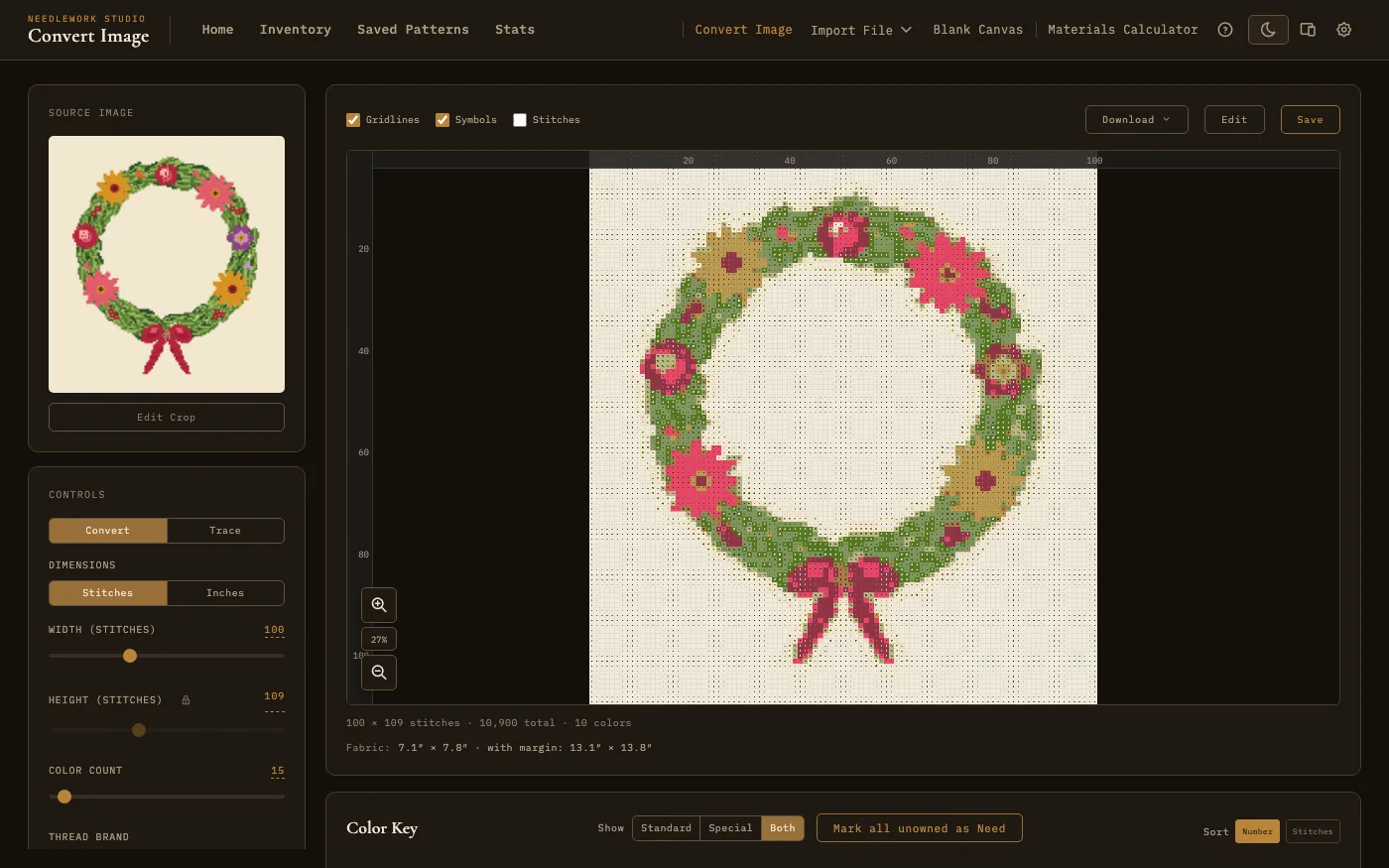
The image-to-pattern converter with source image, dimension and color controls, and generated chart preview
Creating Patterns
Needlework Studio offers two ways to start a new pattern, both accessible from the Create menu in the navigation bar.
Image to Pattern
The Image-to-Pattern converter transforms any photograph or image file into a stitchable cross-stitch chart. The workflow is as follows:
- Upload an image - Select or drag-and-drop a file. Supported formats: JPEG, PNG, WebP, and GIF (up to 10 MB).
- Configure grid size - Set the width of the resulting pattern in stitches, from 25 to 250 in the full version (up to 75 in the free version). The height is calculated automatically to maintain aspect ratio. You can lock or unlock the aspect ratio.
- Set color count - Choose how many thread colors the pattern should use, from 5 to 100 in the full version (up to 30 in the free version). Fewer colors produce a simpler, more stylized result; more colors capture finer gradients.
- Adjust image settings - Use the contrast and brightness sliders to tweak the image before conversion. A palette filter (Standard, Special, or Both) controls which subset of thread colors is used. You can also select the thread brand (DMC, Anchor, or Mill Hill) and toggle pixel art mode for sharp, un-antialiased output.
- Choose dithering - Toggle dithering on or off. When enabled, dithering simulates additional colors by interleaving stitches of different colors, producing smoother gradients. When disabled, each stitch is the single nearest thread color, resulting in solid blocks.
- Crop the image - An inline crop tool lets you select the region to convert. Crop shapes include rectangle, square, ellipse, and circle.
- Generate - Click generate to produce the pattern. The converter quantizes image colors to the nearest thread colors and produces a grid chart with a real-time preview and color key.
After generation you see a preview of the finished chart. From there you can Edit it with the drawing tools described below, Save it, and then Open in Viewer. In the full version, Trace It Myself skips the automatic conversion and puts the photo under a blank grid so you can stitch over it by hand. See the Image Converter page for every setting.
Blank Canvas
The Blank Canvas option creates an empty grid at custom dimensions that you specify. Enter the desired width and height in stitches, from 5 up to 1000 in the full version (300 in the free version). You can change the fabric color afterward from the editor's Fabric menu. With the simple toolbar, a new canvas opens with the Draw tool and black thread ready to go. This is ideal for designing patterns entirely from scratch - lettering, geometric designs, borders, or original artwork.
Drawing Tools
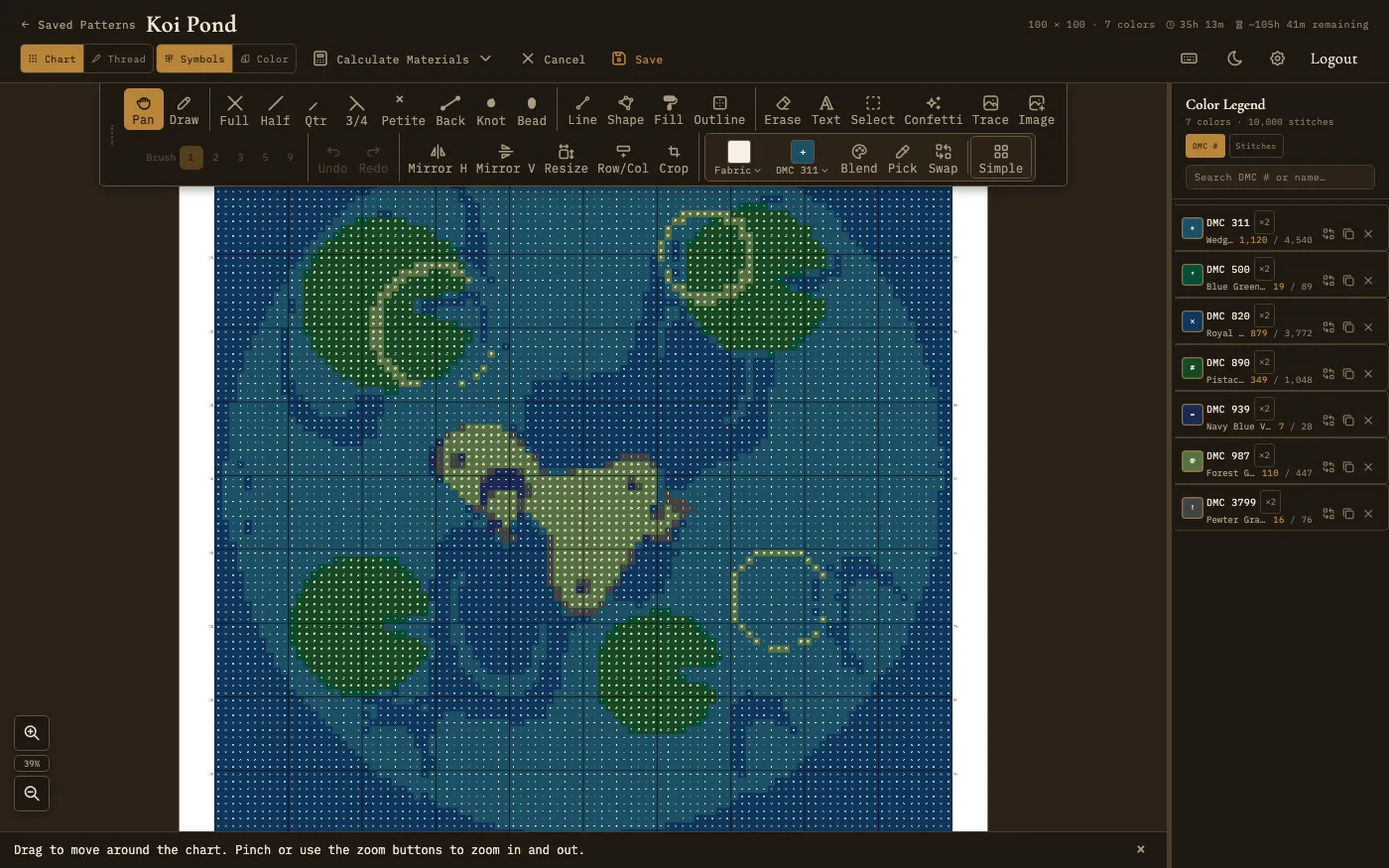
The pattern editor in edit mode with drawing tools, stitch types, and color key
In the full version the pattern editor has 14 tools in its toolbar: Pan, Draw, Line, Shape, Fill, Outline, Erase, Text, Select, Confetti, Trace, Image, Pick, and Swap. The free version has 10, without Confetti, Trace, Image, and Swap. A Reference tool also appears when a pattern has chart pages imported with it. Select a tool by clicking its icon or pressing its keyboard shortcut.
Simple and All tools. New installs open the editor in a simple toolbar with a short set of controls: Draw, Fill, Erase, Pick, Undo, Redo, the thread color, and All tools. Click All tools to show everything, and Simple to go back. The app remembers your choice. If you updated from an older version, the editor keeps the full toolbar until you choose otherwise.
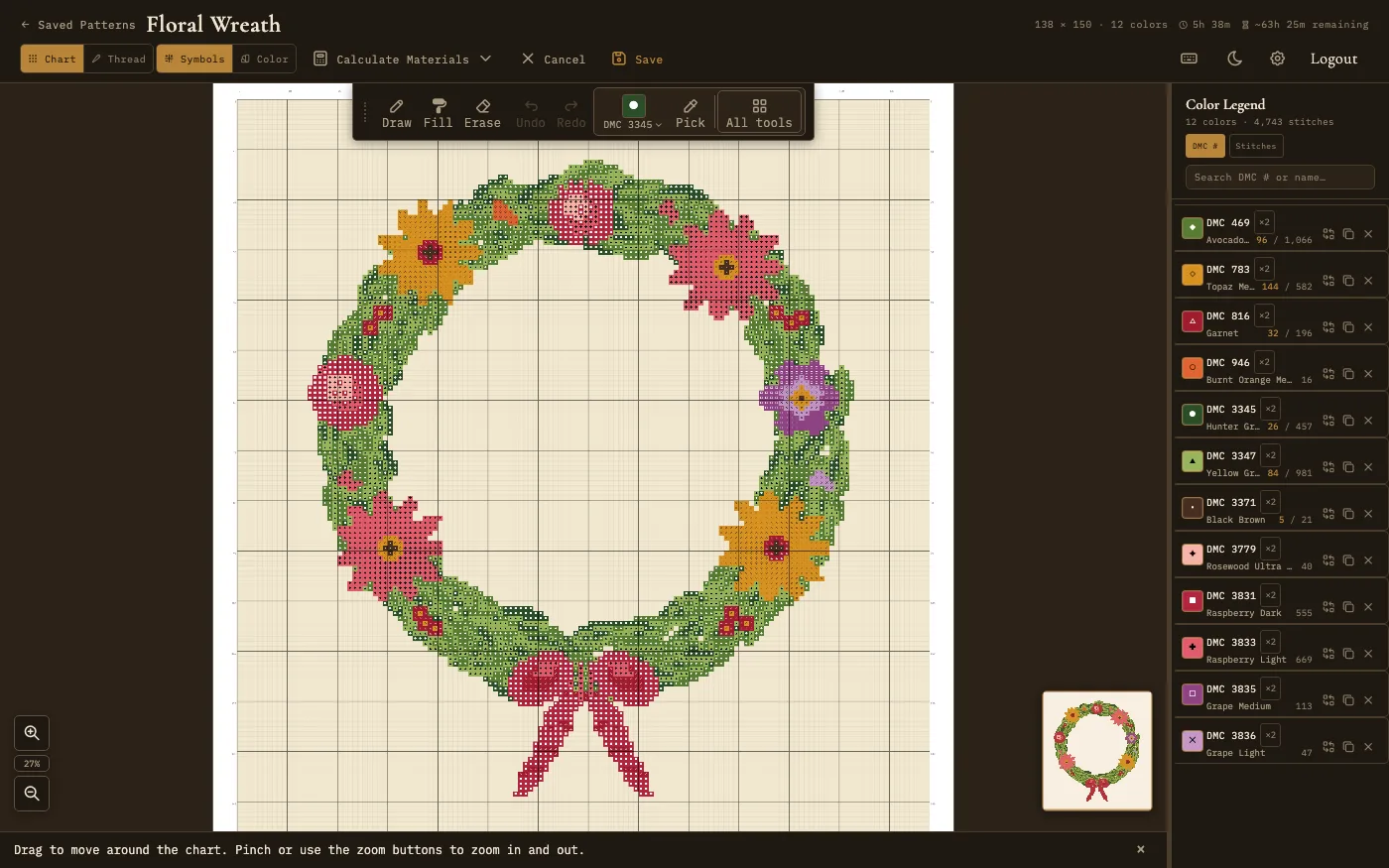
The simple toolbar: the everyday tools, with All tools for the rest
More button. When the window is too narrow for every tool, the less common ones move behind a More button at the right end of the toolbar. Widen the window and they come back.
Moving the toolbar. Drag the grip at the left end of the toolbar to move it out of your way. Drag it back to the top to snap it home, or double-click the grip.
Hints. A line under the chart tells you what your next click will do with the current tool. You can dismiss a hint, and bring them all back under Settings → Editor Hints.
Hand / Pan
Click and drag to pan the canvas. You can also hold Space with any other tool active to temporarily switch to pan mode. Press H to select this tool.
Pencil / Draw
The primary drawing tool. Click or click-and-drag to place stitches on the grid using the currently selected stitch type and color. First select a stitch type (Full, Half, Quarter, etc.) from the stitch toolbar, then use the pencil to draw. The pencil respects the current brush size setting, allowing you to draw single stitches or larger blocks at once. Press P or W to select this tool.
Eraser
Removes stitches from the grid. Click or drag to erase stitches. Like the pencil, the eraser respects the current brush size. Erased cells revert to the empty (background) state.
When the eraser is active, a mode bar lets you target what gets removed: All erases everything (full and part stitches, backstitches, French knots, and beads), Crosses removes only full and part stitches, and Backstitch removes only backstitches. The choice is remembered between sessions.
Fill (Bucket)
Flood-fills a contiguous region of the same color with the currently selected color. Hovering over a region shows a preview highlight of the area that will be filled before you click. Click on any stitch to replace all connected stitches of that color with the new color.
Line
Draws a straight line of stitches between two points. Click to set the start point, then click again to set the end point. The line is one stitch wide in the current color and stitch type, and follows the nearest whole stitches between the two points.
Shape (Rectangle, Ellipse, Triangle, Diamond, Star)
Draws rectangles, ellipses, triangles, diamonds, and stars on the grid. Press and drag from one corner to the opposite corner, then release. Shapes are filled by default; hold Shift while you drag to draw just the outline. Use the shape mode toggle in the toolbar, or press O, to cycle through the shapes. On a stitch grid, curves and diagonals are approximated to the nearest whole stitches.
Eyedropper
Samples the color of a stitch on the canvas and sets it as the active color. Click any stitch to pick up its color, and the editor switches back to the Draw tool so you can keep stitching. This is a quick way to switch to a color that is already in use in your pattern without searching through the color palette.
Replace Color
Replaces every stitch of one color with another across the entire pattern. Click any stitch of the color you want to replace, or press the replace button on that color's row in the legend. Then pick the new color in the panel above the canvas and press Apply. Every stitch of the old color changes to the new one, and the old color is removed from the legend so it does not linger on your thread list. This is a global operation and is useful for swapping thread colors throughout a design. Replace Color is a full-version feature.
Select
Selects part of the canvas. The select bar has three modes: Rect (click and drag a rectangle), Wand (click a stitch to select the connected area of that color), and Lasso (draw around any shape, full version). Drag a selection to move it. The selection is shown with a marching-ants border. The following operations are available on a selection:
- Ctrl+C - Copy the selected stitches
- Ctrl+X - Cut the selected stitches (copies and removes them from the canvas)
- After copying or cutting, click on the canvas to stamp (paste) the buffer at the clicked position
- R - Rotate the selection 90 degrees (or click Rotate in the select bar)
- H - Flip the selection horizontally (Flip Horizontal)
- V - Flip the selection vertically (Flip Vertical)
- Delete - Clear the selected stitches
Copy, cut, paste, flip, and rotate are full-version features.
Stitch Type Selectors (0 to 7)
Eight toolbar buttons for selecting the active stitch type. Clicking a cell stitch type (or pressing its number key) also picks the Draw tool, so you can start stitching right away. Backstitch and French knot pick their own tool instead. Press the corresponding number key to select each type:
- 0 - Full Stitch (default)
- 1 - Half Stitch
- 2 - Quarter Stitch
- 3 - Three-Quarter Stitch
- 4 - Petite Stitch
- 5 - Backstitch
- 6 - French Knot
- 7 - Bead
Full, half, quarter, three-quarter, petite, and bead stitches work with Draw, Line, Shape, and Text. Backstitch and French knot sit on the grid lines, so they only work with their own button; switching to Draw, Line, Shape, or Text goes back to Full stitch. French knots and beads are full-version features. See the Stitch Types section below for a description of each stitch type.
Text
Renders text onto the canvas as stitches. Click on any grid cell to open the text panel, type your text, and press Enter to stamp it onto the pattern. Press X to select this tool.
The text tool has two rendering modes, toggled with buttons in the text panel:
- Pixel Font - A built-in bitmap font designed specifically for cross-stitch grids. Two variants are available: Standard (5×7 characters) and Compact (3×5 characters). Pixel fonts produce clean, readable lettering at small sizes where system fonts would not rasterize well.
- System Font - Renders text using fonts installed on your computer. Nine curated fonts are available in a dropdown: Georgia, Times New Roman, Palatino Linotype, Arial, Verdana, Trebuchet MS, Courier New, Impact, and Comic Sans MS. System fonts are rasterized onto an offscreen canvas and sampled to stitches, so they work best at larger scales.
Both modes include a scale slider (1× to 10×) to control the output size, and the panel shows a live dimension readout (e.g. "24 × 7 cells") so you can gauge the footprint before placing. The stamped text becomes ordinary stitches and can be edited with any other tool afterward.
Stitch Types
Needlework Studio supports eight stitch types that correspond to the standard stitches and embellishments used in counted cross-stitch embroidery.
Full Stitch
The standard cross-stitch - an X shape that covers one square of the fabric grid. This is the most common stitch type and the default for the pencil tool. Full stitches are displayed as solid colored squares on the chart.
Half Stitch
A single diagonal line covering half of a grid square, going either from bottom-left to top-right or from top-left to bottom-right. Press ` (backtick) to toggle the direction. Half stitches are used for lighter coverage, backgrounds, and blending effects. They use approximately half the thread of a full stitch.
Quarter Stitch
A small diagonal stitch that covers one quarter of a grid square. Quarter stitches start from a corner and end at the center of the square. They are used for fine detail work and smooth diagonal edges, especially in realistic or photographic patterns.
Three-Quarter Stitch
A combination of a half stitch and a quarter stitch, covering three-quarters of a grid square. This stitch type is commonly used to create smoother curves and diagonal lines than full stitches alone can achieve. It is especially useful for lettering and organic shapes.
Petite Stitch
A small cross-stitch that occupies one quarter of a grid square. Petite stitches are smaller than regular full stitches and are used for fine detail in areas where a full-sized stitch would be too coarse. They are treated as quarter-weight stitches in the materials calculator.
Backstitch
A straight line stitch used for outlines, borders, and fine detail. Backstitches run along the edges of grid squares (rather than filling them) and can be placed horizontally, vertically, or diagonally. They are typically stitched after all cross-stitches are complete and are essential for defining shapes and adding crispness to a design.
When the backstitch tool is active, a Chain button appears next to it. With Chain enabled, each click after the first continues the line from the previous endpoint, so a connected run of stitches is one click per point rather than two clicks per segment. Press Esc, switch tools, or click the same point twice to end the chain.
A Snap button rounds every existing backstitch to the nearest grid corner in one undoable step, which is handy for tidying up blackwork or grid-only outlines. For that style of work, the Backstitch Anchors setting (Settings, editor section) can restrict new backstitches to cell corners only, omitting the mid-edge anchor points.
French Knot
A small raised dot placed at the intersection of grid lines. French knots are used for eyes, flower centers, decorative dots, and other small accent details. They are represented on the chart as small circles or dots at grid intersections.
Beads
Beads are placed on individual grid cells to represent seed beads or other small beads stitched onto the fabric. They are shown on the chart as small ovals and are exported alongside other stitch data in all supported formats.
Blend Threads
Blend threads combine up to three thread colors into a single stitch. In real cross-stitch, this is achieved by threading one strand of each color through the needle together. Needlework Studio renders blend stitches with every component color visible in each fiber, creating a realistic blended appearance.
Creating a Blend
Click the Blend button in the editor toolbar (next to the thread color picker). A modal appears with three component slots, each with its own brand picker and searchable color list. Choose two or three distinct threads. A preview swatch shows the averaged color with a fine two-tone hatch. Add it to your palette, then paint with the blend just like any regular color.
How Blends Render
- Thread mode: Each fiber of the X-stitch is drawn as parallel railroaded strands, one per component color, mimicking real blended thread.
- Chart mode: Blend cells display a fine hatch of the component colors, with a symbol overlay.
- Legend: Blend entries appear with a hatched swatch and are labeled with every component thread number (e.g., "DMC 918 + DMC 919").
Importing Blends
Needlework Studio recognizes blend notation when importing patterns from other software:
- JSON: Blend cells using
_separators (e.g.,"918_919") and[+]legend entries are automatically converted. - OXS: Palette entries with
[+]in the number field and_-separateddmccodesare detected as blends. - PDF: Blend notation like
310/906or310+906in thread legends is parsed automatically.
Exports and Materials
Blend threads are fully supported across all export formats (PDF, PNG, SVG, HTML, OXS, JSON). The shopping list and materials calculator automatically decompose blends into their component threads for accurate skein estimation.
Blend threads are a full-version feature.
Image to Stitches
Image to Stitches converts part of a photo into stitches directly on your chart, without leaving the editor. It is handy for dropping a face, a small motif, or a logo into a design you are already working on, as opposed to the full-image Image Converter.
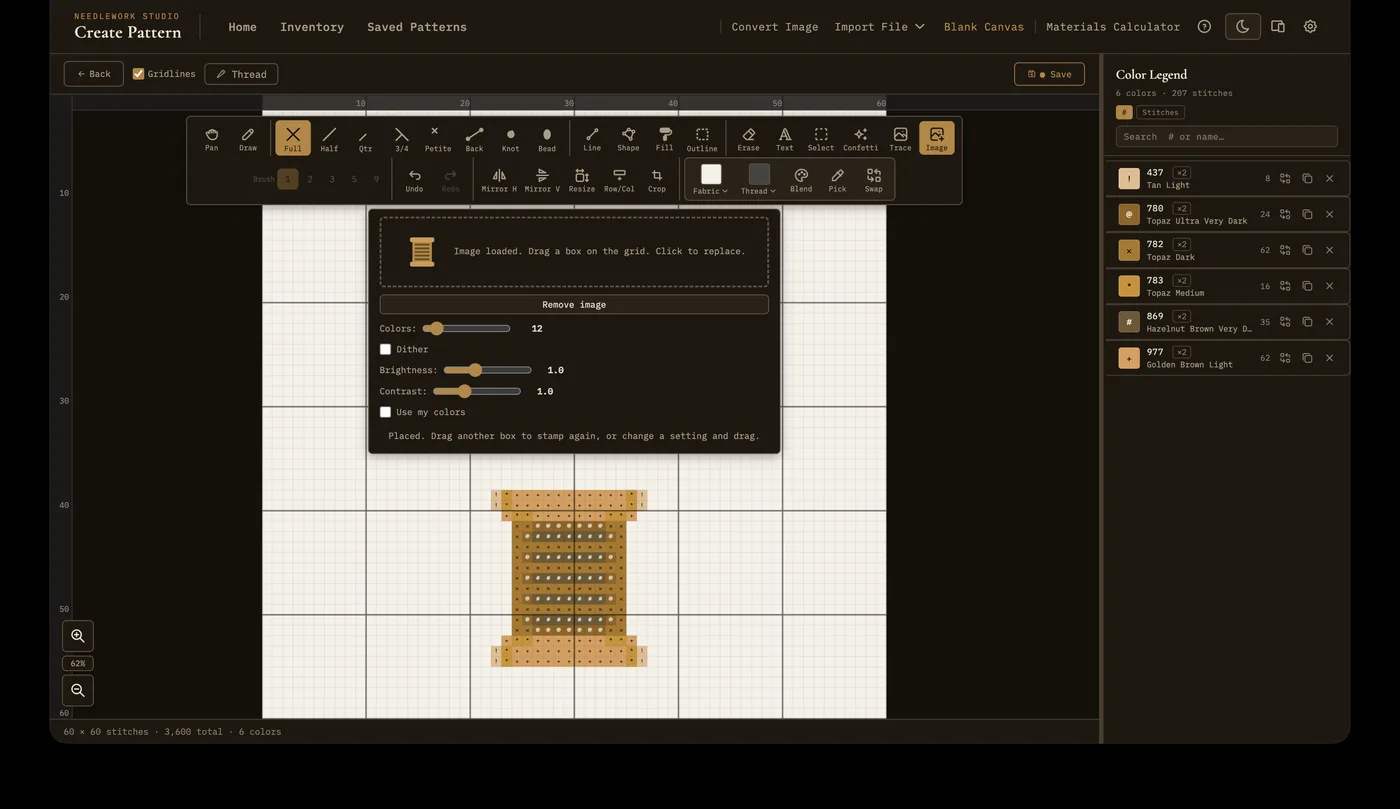
The Image to Stitches tool open in the pattern editor
Pick the Image tool, then click, drop, or paste an image into its panel. Drag a box on the grid to mark where the image should go (at least 2 by 2 cells); the selected area is converted and a movable block of stitches appears. Drag it to position, then click or press Enter to place it, or Esc to cancel. The loaded image stays available, so you can place several blocks from it.
While a block is floating you can tune it live with a Colors slider, brightness, contrast, and a Use my colors toggle that limits the conversion to the threads already in your pattern so the stamped region blends in. The conversion uses your pattern's thread brand, and the whole block is a single undo step.
Image to Stitches is a full-version feature.
Brush Sizes
Several tools (including the pencil and eraser) support adjustable brush sizes. Press [ to cycle to a smaller brush size and ] to cycle to a larger brush size. The available sizes are:
- 1x1 - Single stitch. The most precise option for detailed work.
- 2x2 - A block of four stitches. Good for filling small areas quickly.
- 3x3 - A block of nine stitches. Useful for medium-scale fills.
- 5x5 - A block of twenty-five stitches. Speeds up large area work.
- 9x9 - A block of eighty-one stitches. The largest brush for rapid coverage of big areas.
Additional Editor Tools
Auto-Outline
The auto-outline tool automatically generates backstitch outlines around contiguous regions of color in your pattern. Press Ctrl+Shift+O to open auto-outline. This saves considerable time compared to manually placing backstitches along every edge. Click a region to outline it in that region's own color. Everyone can outline one region at a time. The outline options and Outline all, which outlines the whole pattern at once in the outline color you choose, are full-version features.
Confetti Cleanup
Removes "confetti": small scattered clusters of stitches that make a pattern tedious to stitch. Set Max cluster from 1 to 10 stitches (3 by default), and choose Whole Pattern or Selection. The bar shows how many cells will change. Click Apply to replace each cluster with a neighboring color, or Cancel. This is especially useful after converting a photograph to a pattern. Confetti cleanup is a full-version feature.
Place Markers
Place markers (small square outlines) on specific grid cells to mark your position, flag areas for later attention, or annotate the design. Markers are placed in the Pattern Viewer, not the editor: press B there to toggle marker placement mode. Markers are saved with the pattern. They do not affect the stitch data and are purely a visual aid.
Crosshair Guides
Press G to toggle crosshair guides on and off. When enabled, horizontal and vertical guide lines follow the cursor across the full width and height of the grid, highlighting the current row and column. This makes it easier to align stitches and track your position on large patterns. The guides are drawn as a subtle translucent overlay and do not affect the stitch data.
Trace Tool
The trace tool places a reference image beneath the grid so you can stitch over it like tracing paper. Drop, paste, drag, or pick an image to load it, then adjust its opacity, scale, and rotation and drag it into position. Click Place to lock it down so it stays put while you draw. Press U to pick the tool. The trace image is a guide only and never becomes stitches, but it is saved with the pattern, so it is still there next time you edit. It only shows while you are editing, and the viewer tells you when a pattern has one. The trace tool is in every editor: a blank canvas, the image converter, and editing a saved pattern.
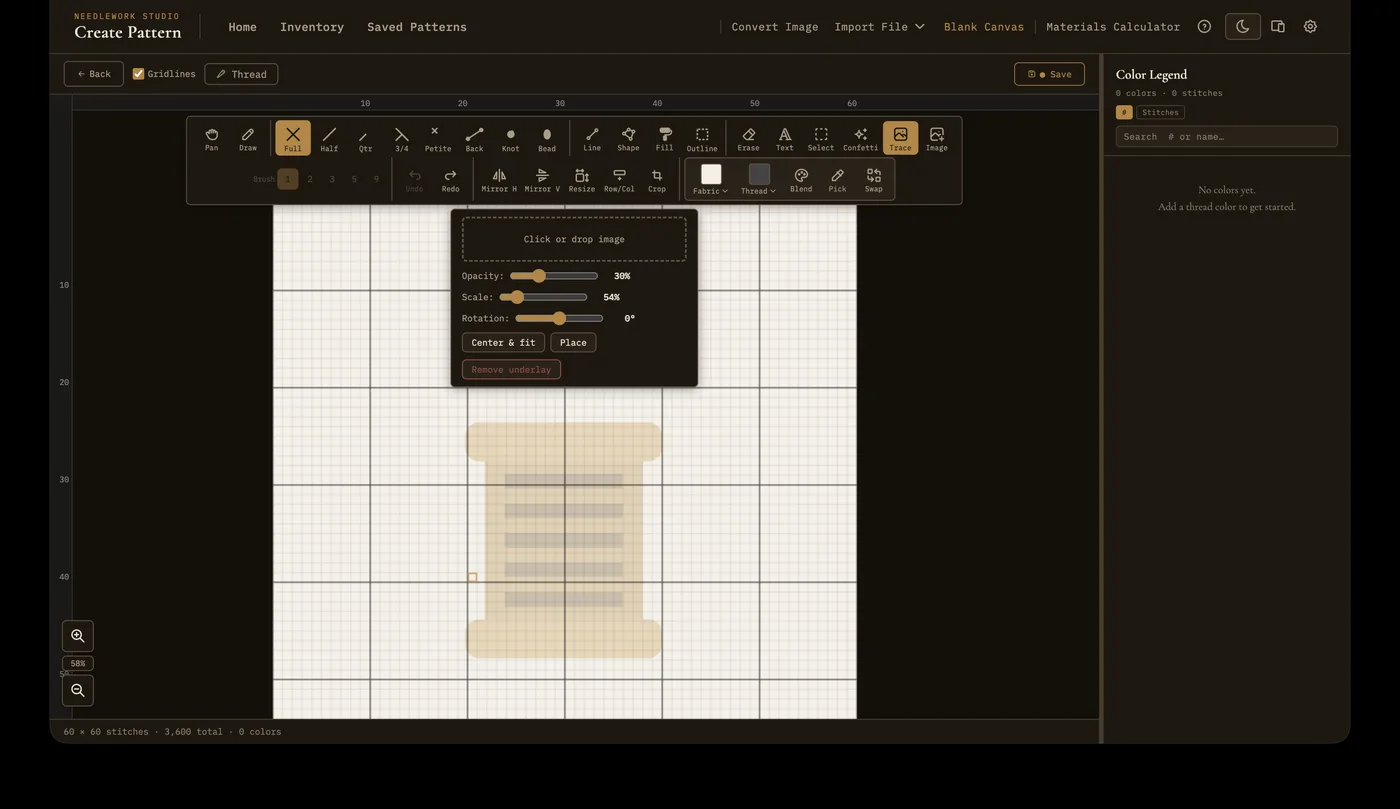
The trace tool, ready to load a reference image beneath the grid
The trace tool is a full-version feature.
Canvas Operations
Mirror and Symmetry Modes
Symmetry modes duplicate your strokes across an axis. When enabled, every stitch you place is mirrored on the opposite side of the canvas. Click Mirror H for a left-right mirror, Mirror V for top-bottom, or turn on both for four-way symmetry. Press M to cycle through the modes. Mirroring lasts until you close the pattern; to start every pattern in a mirror mode, set it in Settings. Mirror is a full-version feature. These are especially useful for symmetric motifs, borders, and mandala-style patterns.
Undo and Redo
The editor keeps up to 50 levels of undo and redo in the full version, and 10 in the free version. Press Ctrl+Z (or Cmd+Z on macOS) to undo the last action, and Ctrl+Y (or Cmd+Shift+Z) to redo. You can also use the undo and redo buttons in the toolbar. The history tracks all drawing operations, color changes, and canvas modifications.
Canvas Resize
You can resize the canvas after creation without losing your existing work. Press Ctrl+Shift+R to open the resize dialog. Enter new dimensions and choose an anchor position that determines where the existing content is placed within the new canvas. For example, anchoring to the top-left adds empty space to the right and bottom, while anchoring to the center adds equal space on all sides.
Row and Column Insert / Delete
Insert or delete individual rows and columns at any position in the grid. Press Ctrl+Shift+I or click the Row/Col button in the toolbar to open the insert/delete modal. The modal lets you choose between rows and columns, enter a 1-based index, and then insert before, insert after, or delete at that position. When deleting a row or column that contains stitches, a confirmation prompt appears first. All stitch data (part stitches, backstitches, knots, beads) is properly shifted or removed to keep the pattern consistent. The operation is fully undoable.
Crop to Content
Click Crop in the toolbar, or press Ctrl+Shift+C, to trim the empty rows and columns around your design.
Minimap
A small overview of the entire pattern is shown in the corner of the editor. The minimap highlights the portion of the canvas currently visible in the main viewport. Click or drag on the minimap to jump to a different part of the pattern quickly.
Autosave and Recovery
The editor autosaves your work to storage on your own computer every few seconds. If you close the tab or the app crashes, the next time you open the editor you will be prompted to recover your unsaved work. That automatic prompt covers the last 7 days. For a saved pattern, an older draft is not thrown away: open the pattern in the viewer, go into zen mode, and choose Recover unsaved edits from the zen bar's More menu. That has no age limit. Zen mode is a full-version feature. Unsaved work on the Blank Canvas and Image to Pattern pages comes back only through the automatic prompt.
Keyboard Shortcut Help
Press ? in the editor to open a help overlay listing all keyboard shortcuts for tools, stitch types, and canvas operations.
Pattern Statistics
The editor displays pattern statistics including total stitch count, dimensions, and per-color stitch counts. These update as you draw and are visible in the legend panel.
Color Management
The color palette panel in the editor displays all colors currently used in the pattern. From this panel you can:
- Add colors - Open the thread picker to add new colors to your pattern's palette. A brand menu at the top of the picker switches the thread list between DMC, Anchor, Mill Hill, and any custom thread brands you have added. It starts on the pattern's own brand, and changing it lets you mix brands within a single design. The thread button shows the color and its chart symbol. The list supports search by thread number or name and shows ownership status against your Thread Inventory so you can prefer threads you already have.
- Replace colors - Swap one color for another throughout the entire pattern with the Swap tool or the replace button on a legend row (full version).
- Remove colors - Remove a color from the palette. If the color is used in the pattern, you are asked to confirm first. When you are editing a saved pattern from the viewer, an Undo button appears right away in case you change your mind.
- Per-color strand counts - Each legend row has a strand-count button (shown as ×N). Set how many strands a color uses, from 1 to 8; the materials calculator uses this for skein math, and backstitch line weight scales with it.
- Multiple entries per color - Duplicate a legend row to use the same thread more than once, for example a 2-strand and a 1-strand version, each with its own symbol and strand count. The split round-trips through OXS and JSON.
Fabric Color
You can customize the background color of the aida cloth in your pattern. By default, the fabric is Antique White, a warm off-white (#F5F0E8). You can pick White or Black instead from the Fabric menu, or any color with Custom. This is useful for patterns designed for colored fabric, such as black aida for glow-in-the-dark or white-on-dark designs. The fabric color is saved with the pattern and visible in both the editor and viewer.
Custom Symbols
Every legend entry is assigned a chart symbol automatically, but you can choose your own. While editing, click a color's swatch in the legend to open the symbol picker, which shows all 273 chart glyphs. Click a glyph to apply it, or press Esc to cancel. The picker scrolls your current symbol into view and highlights it, the arrow keys move between glyphs, and any glyph already used by another entry is marked with a small dot so you can avoid duplicates. An Auto button assigns the first unused glyph when you just want a distinct symbol. Press Y to open the picker for the active legend row. It works in both the pattern editor and the image converter; blend entries take their symbol from the component colors.
Nine of those glyphs are yours to pick but are never handed out on their own: capital I, O, Q and S, and the Greek letters iota, kappa, nu, omicron and upsilon. Each one looks close enough to another symbol that a chart using both becomes hard to read. Turning a photo into a pattern, importing a PDF, and adding a color all skip them, so a capital I only ever ends up next to a lowercase l if you put it there. They are in the picker because copying a chart over from other software goes a lot faster when the symbol you need is actually available.
Keyboard Shortcuts
Press ? at any time to see the full list in the editor. The most common shortcuts:
- H - Hand / pan tool
- P or W - Pencil / draw tool
- E - Eraser tool
- F - Fill tool
- L - Line tool
- T - Shape tool (rectangle)
- O - Cycle shape mode (rectangle → ellipse → triangle → diamond → star)
- I - Eyedropper tool
- X - Text tool
- R - Replace color (Swap) tool
- S - Selection tool
- C - Confetti cleanup
- U - Trace tool
- 0 - Full stitch
- 1 to 7 - Stitch types (half, quarter, three-quarter, petite, backstitch, French knot, bead)
- M - Cycle mirror mode (off → horizontal → vertical → both)
- G - Toggle crosshair guides
- ` - Toggle half-stitch direction
- , / . or the arrow keys - Previous / next color in the legend
- Space (hold) - Temporary pan
- Ctrl+Z / Cmd+Z - Undo
- Ctrl+Y / Cmd+Shift+Z - Redo
- Ctrl+S / Cmd+S - Save pattern
- Ctrl+Shift+R - Resize canvas
- [ / ] - Decrease / increase brush size
- Ctrl+Shift+O - Auto-outline
- Ctrl+Shift+I - Insert / delete rows and columns
- Ctrl+Shift+C - Crop to content
- Ctrl+C / Ctrl+X / Delete - Copy / cut / clear selection
- R / H / V (with a selection) - Rotate / flip horizontally / flip vertically