Project Management
Organize your pattern library, track stitching progress, and plan materials for your projects.
Some features on this page require the Full Version.
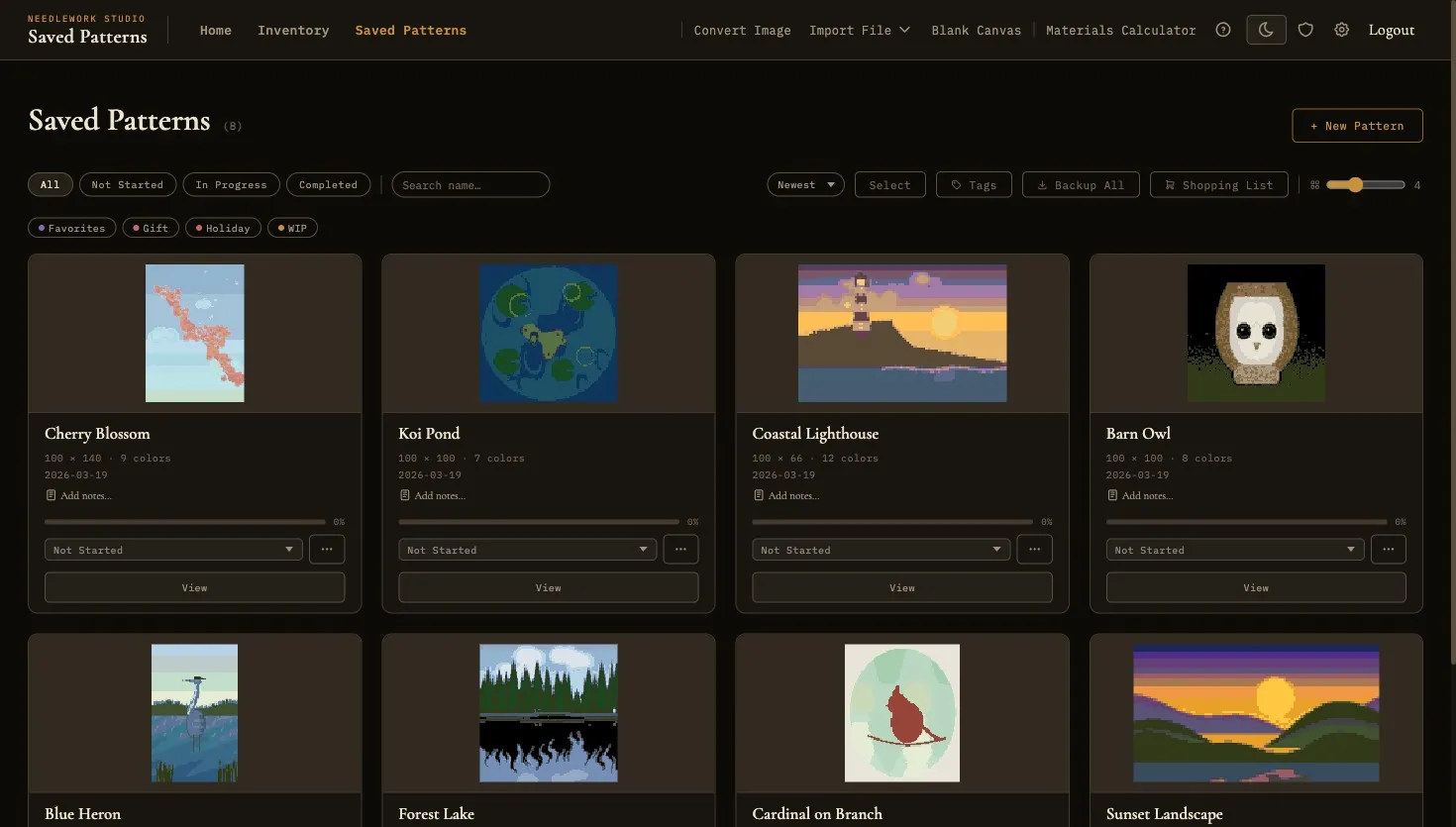
The saved patterns gallery with search, sort, and batch actions
Pattern Status
Every saved pattern in Needlework Studio has a status that reflects where it stands in your workflow. There are three status levels:
- Not Started - The pattern has been saved to your library but you have not begun stitching it. This is the default status for newly created or imported patterns.
- In Progress - You are actively stitching this pattern.
- Completed - You have finished stitching the pattern. Completed patterns remain in your library for reference but are visually distinguished from active projects.
Each pattern card in the Saved Patterns gallery has a status dropdown. Pick a status there to change it. The dropdown is colored by status, so you can see where each project stands at a glance.
You usually don't need to set it by hand. As you mark stitches in the Pattern Viewer, the status follows along: it becomes In Progress when you mark your first stitch, and Completed when every stitch is marked.
Progress Tracking
Beyond the high-level status, Needlework Studio tracks your progress stitch by stitch. In the Pattern Viewer you mark squares as you stitch them, or mark a whole thread color complete from the legend.
Visual Progress Bars
Each pattern card in the Saved Patterns gallery displays a progress bar showing how many of the pattern's stitches you have marked. Backstitches, French knots, and beads count too. If a pattern has 10,000 stitches and you have marked 5,000 of them, the bar shows 50%. A pattern set to Completed always shows 100%. This gives you a quick sense of how far along each project is without opening it.
Saved Patterns Gallery
The Saved Patterns page is your central pattern library. It displays all of your patterns as a gallery of thumbnail cards, with tools for searching, sorting, and managing your collection.
Thumbnails
Each pattern card shows a thumbnail preview of the pattern, rendered as a miniature version of the chart. The thumbnail gives you a visual reference for quickly identifying patterns without needing to open them. Thumbnails are generated automatically when a pattern is created or imported and are updated when you make changes in the editor.
Search
A search bar at the top of the gallery lets you filter patterns by name. Type any part of a pattern's name to instantly filter the gallery to matching results. This is essential as your library grows and you need to locate a specific pattern among dozens or hundreds.
You can also get around the gallery from the keyboard. Press the Down arrow in the search box to jump to the first match, use the arrow keys (and Home or End) to move between pattern cards, and press Enter to open the one you are on. While you are selecting patterns for a batch action, Enter selects or unselects the card instead.
Sorting
You can sort the pattern gallery by several criteria:
- Newest - Most recently changed first. This is the default, so the patterns you worked on last are at the top.
- Oldest - Least recently changed first.
- Name A-Z and Name Z-A - Alphabetical order.
To see your active projects together, use the status filters below.
Status Filters
At the top of the gallery, a row of dedicated filter buttons lets you filter patterns by status. The available filters are:
- All - Show every pattern in your library (the default view).
- Not Started - Show only patterns you have not yet begun stitching.
- In Progress - Show only patterns you are actively working on.
- Completed - Show only finished patterns.
Status filters can be combined with the search bar and sort order to narrow down exactly the patterns you are looking for.
Batch Actions
You can select multiple patterns at once and perform batch actions on the selection. Enter selection mode by clicking the Select button in the gallery toolbar, then click individual pattern cards to select them. You can also use the Select all visible option to select every pattern currently shown in the gallery (respecting any active search, status filter, or tag filter). Available batch actions include:
- Delete - Remove multiple patterns from your library at once. A confirmation dialog prevents accidental deletion.
- Status change - Set the status of all selected patterns to Not Started, In Progress, or Completed simultaneously.
- Tag - Bulk apply tags to all selected patterns. This is a fast way to organize a group of patterns under a shared label without opening each one individually.
- Export - Bulk export all selected patterns at once. You can choose from PDF, SVG, OXS, JSON, or PNG formats. PDF, SVG, and OXS are part of the Full Version. This is useful for backing up a set of patterns or sharing multiple designs with someone in a single operation.
Batch actions are useful when reorganizing your library, bulk-tagging patterns for a new project, exporting a collection, or removing patterns you no longer need.
Other Gallery Tools
- Cards per row - The slider at the right end of the toolbar sets how many cards fit across, from 2 to 8.
- Backup All - Downloads every pattern as one ZIP file. Part of the Full Version.
- Import Progress - Brings in the squares you already marked in another stitching app. Choose a
.pk_progressor.spprogress file, then pick which of your patterns to apply it to. - Save for offline - In a card's
...menu. Keeps a copy of that pattern on this device so you can open it without a connection. See Share to Phone. - Export - Also in a card's
...menu, for one pattern at a time. It offers the same formats as batch export, plus HTML (Shareable) and Export outline. See Import & Export.
Pattern Cards
Each pattern in the gallery is represented by a card that displays key information at a glance:
- Thumbnail - A miniature rendering of the pattern chart.
- Pattern name - The name you assigned when creating or importing the pattern. Click the name to rename it inline.
- Thread count - The number of distinct thread colors used in the pattern.
- Dimensions - The size of the pattern grid in stitches (width x height).
- Status - A colored dropdown showing the pattern's current status (Not Started, In Progress, or Completed). Change it right there.
- Progress bar - How much of the pattern you have stitched.
- Designer - The pattern's designer or source. Click the row to set or edit the value inline; once set, the row turns gold so you can spot at a glance which patterns have attribution.
- Notes preview - The opening of the pattern's notes appears under the metadata as a single-line preview. Click the row to edit notes in place without opening the pattern; click outside the field to save.
Click the thumbnail to open the pattern in the Pattern Viewer. The name, designer, and notes rows on the card have their own click handlers so you can edit them in place without leaving the gallery.
Pattern Tags
Tags let you organize your pattern library with custom labels. You can create any number of tags and assign them to patterns for quick filtering and grouping. Tags are part of the Full Version.
- Creating tags - Create a new tag by typing a name. You can optionally assign a custom color to each tag for visual distinction in the gallery.
- Assigning tags - Open a pattern card's
...menu and choose Tags, or select several patterns and use the batch Tag action. A pattern can have multiple tags. - Filtering by tag - In the Saved Patterns gallery, filter the view to show only patterns with a specific tag. This is useful for grouping patterns by project, recipient, theme, or any other category you define.
- Managing tags - The Tags button in the gallery toolbar lets you rename a tag, change its color, or delete it.
When at least one tag has been created, a tag filter row appears in the gallery below the status filter buttons. This row displays all available tags as clickable buttons, letting you quickly filter the gallery to show only patterns with a specific tag. Click more than one tag to see patterns that have any of them. Click a tag again to turn it off.
Pattern Notes
Each pattern has a free-text notes field where you can record any information you want to associate with the pattern. Notes are visible on pattern cards in the gallery (the opening of the note shows as a single-line preview, click to edit in place) and in the Pattern Viewer's notes panel (press N). Common uses include stitching reminders, fabric details, gift recipients, color substitution notes, or links to the original design source.
Designer
Each pattern has an optional designer field for recording who designed or published the chart, up to 120 characters. Set or edit it inline from the pattern card in the Saved Patterns gallery. Designer is stored with the pattern and shown on the gallery card; it is not currently included in any of the export formats, so attribution stays inside Needlework Studio rather than traveling with exported files.
Shopping Lists
Two shopping list views in the Saved Patterns gallery help you turn a pattern into a buy list. Both are part of the Full Version.
- Per-pattern shopping list - From any pattern card, open the actions menu (the
...button) and choose Shopping List. The modal cross-references the pattern's legend with your Thread Inventory and groups threads into Need to Buy, On Your List, and Already Own. A single Mark as Need button flips all the unowned threads to Need status in your inventory, and a Download CSV button exports the unowned + on-list threads as a CSV. - Cross-pattern shopping list - Click the Shopping List button in the gallery toolbar. This aggregates threads needed across every pattern that isn't marked Completed, so finished projects don't pad the list. Each entry shows how many stitches are required across how many patterns. The modal exports a CSV with brand, thread number, name, status, total stitch count, and the list of patterns that need each thread.
The Need status flipped by the per-pattern modal is the same one used by the Thread Inventory's Need filter and printable shopping list, so flagging here also surfaces those threads anywhere else the inventory is consumed.
Duplicating Patterns
The duplicate feature creates an independent copy of any pattern in your library. When you duplicate a pattern, Needlework Studio copies the chart itself: the grid, the legend, part stitches, backstitches, French knots, and beads. Changes to the duplicate do not affect the original pattern, and vice versa.
The copy keeps the original's tags. Your stitching progress, notes, and designer stay with the original. A trace image is not copied, but the Trace tool on the copy can still open the original photo.
Duplicating is useful in several scenarios:
- Experimenting with changes - Duplicate a pattern before trying a major color scheme change or design modification. If the experiment does not work out, you still have the original.
- Creating variations - Start from an existing pattern to create a different version, such as changing the color palette or adding a border.
- Preserving the original - Before heavily editing an imported pattern, duplicate it to keep a pristine copy of the original import.
Duplicated patterns appear in your library with a default name based on the original (e.g., "My Pattern (copy)"), which you can rename at any time.
Materials Calculator
The materials calculator works out how many skeins of each color a pattern needs and how big a piece of fabric to cut. It is part of the Full Version. Open it from a pattern card's ... menu, or from Calculate Materials in the Pattern Viewer.
It has three modes:
- By Pattern - Skeins for every color in a saved pattern. It also shows how many skeins you own, from your Thread Inventory, and how many more you need to buy.
- By Stitch Count - Skeins for a single color, from a stitch count you type in.
- By Fabric Size - How big your fabric needs to be for a pattern, at each fabric count, with a margin on every side.
You can save a pattern's calculator settings so they come back the next time you open it for that pattern. For the details of each mode, see the Materials Calculator page.