Pattern Viewer
View, navigate, and track progress on your cross-stitch patterns with multiple display modes.
Some features on this page require the Full Version.
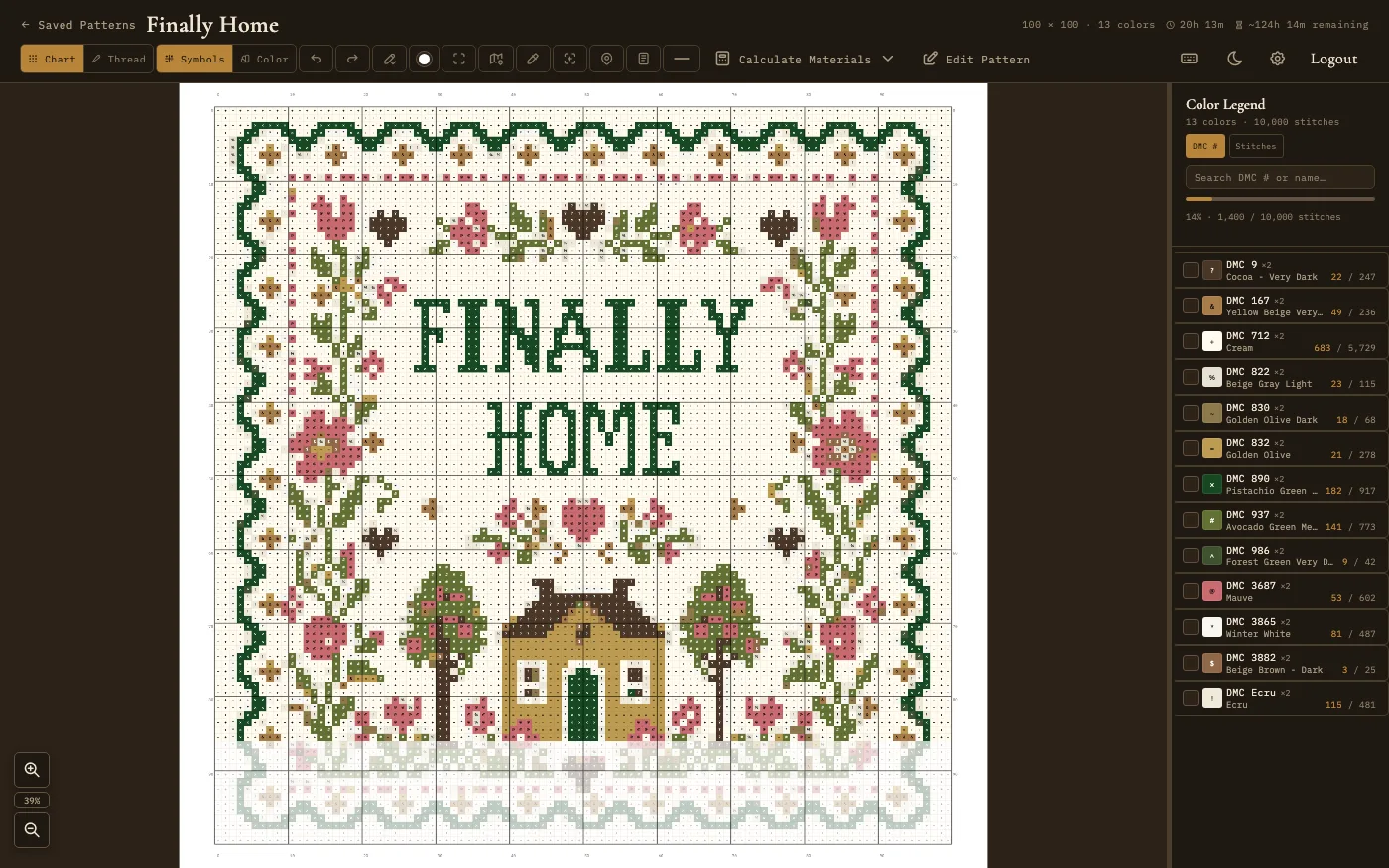
The pattern viewer in chart mode with color legend and progress tracking
Viewing Modes
The Pattern Viewer has three viewing modes. Switch between them using the mode toggle buttons in the viewer toolbar.
Chart Mode
Chart mode displays the pattern as a traditional cross-stitch chart - a grid of colored squares with symbol overlays. This is the standard way to read a cross-stitch pattern while stitching. Each grid cell shows a colored square with a unique symbol assigned to that thread color. The symbol overlays ensure that the chart remains readable even when printed in black and white or when two similar colors are used side by side.
The chart has rulers on all four sides, in the margin around the grid. They number every 10th row and column so you can count your place on the fabric. The rulers are part of the chart, so they scroll along with it.
Gridlines are always displayed in chart mode, providing thin lines between each stitch cell to help with counting stitches and following rows. The Symbols and Color buttons in the toolbar switch between symbols on colored squares and plain color. With Symbols on, symbols appear once the squares are at least 8 pixels across, so the chart stays readable when zoomed out.
Backstitches in chart mode render with a different dash pattern per color (solid, dashed, dotted, dash-dot, and so on) so colors stay distinguishable in printed or low-contrast charts. If you would rather see every backstitch as a clean solid line, click the Solid BS button in the viewer toolbar. It sits next to the backstitch layer toggle. Turn it off to go back to dashed lines.
Thread Mode
Thread mode renders the pattern with realistic stitch textures instead of flat colored squares. Each stitch is drawn to approximate the appearance of actual thread on fabric, showing the characteristic X shape of cross-stitches with simulated thread texture and shading. This mode gives you a preview of how the finished piece will look when stitched.
Thread mode is particularly useful for evaluating color choices, checking that gradients look natural, and getting a sense of the overall visual impact of the design before committing to stitching it.
Zen Mode
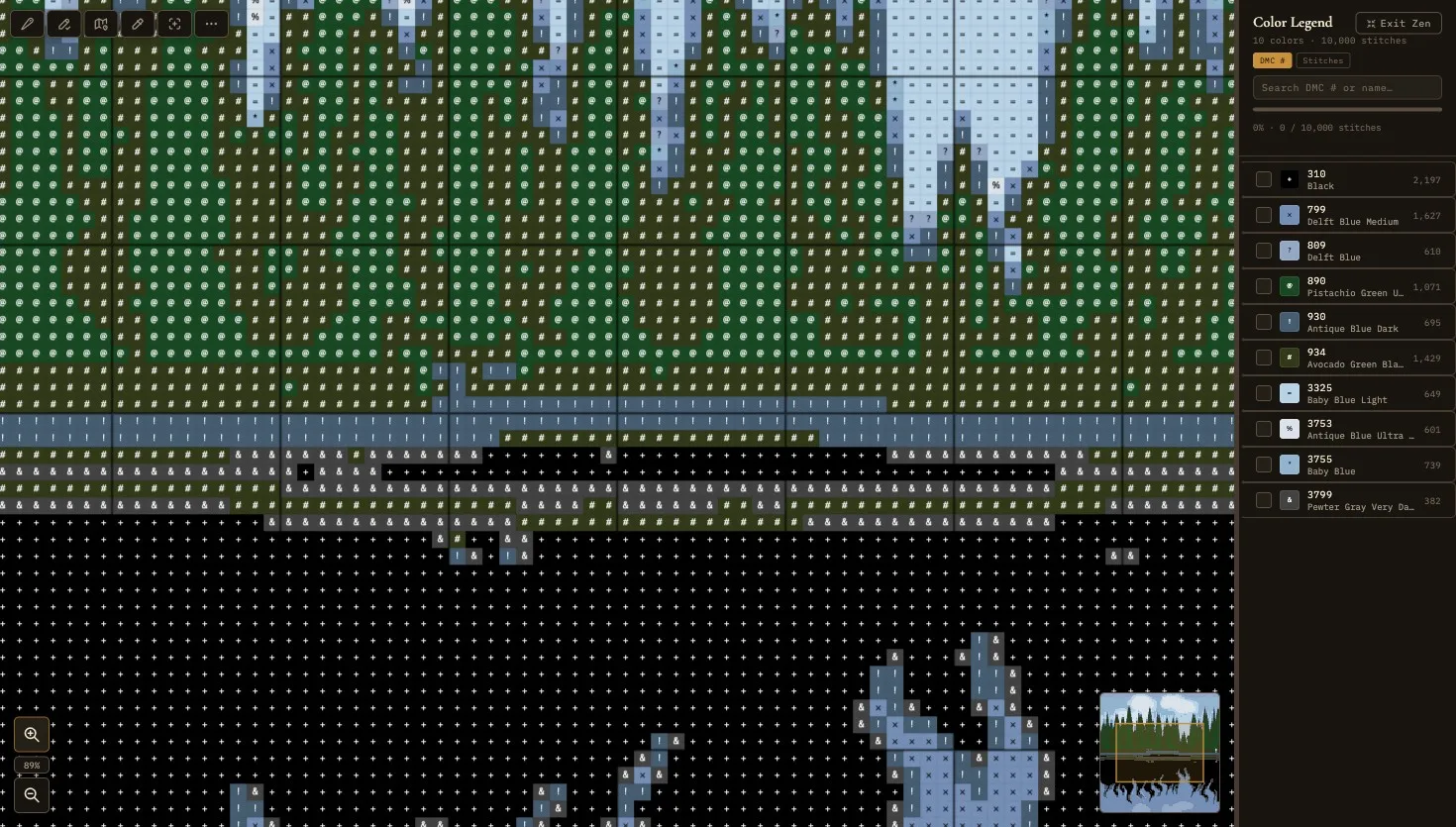
Zen mode gives the chart as much of the screen as it can. It hides the site's menu bar at the top and asks the browser to go fullscreen. The legend stays so you can still see your colors, and it gains an Exit Zen button. Zen mode is part of the Full Version.
In zen mode a slim zen bar holds the tools you reach for while stitching: View (chart or thread), Undo, Redo, Mark, Done color, Marker, Pick, Crosshair, and the backstitch, knot, and bead layer toggles. Its More menu has Go to Row/Col, Recover unsaved edits, Thread Needs, Fabric Size, Edit Pattern, Toggle Theme, and Shortcuts.
Press F or click the zen mode button to enter zen mode. Press F or Escape to exit back to the normal view.
Legend Panel
The legend panel is a sidebar that displays a list of all thread colors used in the current pattern. It serves as both a reference and a progress tracking tool.
Thread List
Each entry in the legend shows the thread's color swatch, symbol (as used in chart mode), thread number, name, and stitch count. The legend provides a complete bill of materials for the pattern, telling you exactly which threads you need and how many stitches of each color the pattern contains.
Pattern Summary
At the top of the legend, a summary line shows the total number of colors and the weighted stitch count across all stitch types. Different stitch types are weighted according to their thread usage (a half stitch counts as 0.5, a quarter stitch as 0.25, and so on) so the totals reflect actual material consumption rather than just the raw cell count. For skeins and fabric size, use the Materials Calculator.
Sort Options
The legend provides DMC # and Stitches sort buttons to reorder the thread list. Sort by DMC number for a consistent reference order, or sort by stitch count to see which colors dominate the pattern.
Search
The legend panel includes a search field that lets you filter the thread list by thread number or name. This is useful in patterns with many colors when you need to quickly find a specific thread. When the search narrows the list to a single color, that color is highlighted on the chart. Press Escape to clear the search.
Highlighting a Color
Click a color in the legend to highlight it on the chart. Every other color fades back so the one you are stitching stands out. Click the same color again to clear the highlight. You can also step through the colors with the , and . keys or the arrow keys, in the order the legend is sorted. The legend scrolls to keep the chosen color in view, however you picked it.
How strongly the other colors fade is up to you: see Highlight Strength in Settings.
Resizable Sidebar
The legend panel is resizable - drag its edge to make it wider or narrower according to your preference. This allows you to balance the space between the legend and the chart area. The panel can also be collapsed entirely to maximize the chart viewing area.
Per-Color Progress Tracking
Each color entry in the legend includes a progress toggle. You can mark individual colors as complete when you have finished stitching all instances of that color in the pattern. Marking a color complete also marks every one of its stitches on the chart, including its backstitches, knots, and beads, so the chart and the legend always agree. Completed colors are visually distinguished in the legend, making it easy to see at a glance which colors remain. This per-color tracking is especially useful when stitching with the "cross-country" method, where you complete one color at a time across the entire pattern.
In the Full Version, each color's count shows how far along it is, for example 120 / 480, once you have marked some of its stitches.
Minimap
A minimap in the bottom-right corner of the viewer shows a scaled-down overview of the entire pattern. A highlighted rectangle indicates the portion of the pattern currently visible in the main viewport. Click or drag on the minimap to jump to a different area. The minimap is especially helpful on large patterns where the zoomed-in view only shows a small section of the chart.
Zoom Controls
The viewer supports a wide zoom range, giving you the flexibility to see the entire pattern at once or zoom in to inspect individual stitches. The zoom controls sit in a small box on the chart itself.
- Zoom in - Click the zoom in button, or scroll up with your mouse scroll wheel.
- Zoom out - Click the zoom out button, or scroll down with your mouse scroll wheel.
- Exact zoom - The percentage between the two buttons is a box you can type in. Type a number and press Enter. Type 100 to go back to 100%.
At lower zoom levels, symbols are hidden automatically (they appear when cells are at least 8 pixels in size), showing only the color blocks.
Toolbar
The viewer toolbar provides access to key features and tools for working with your pattern.
Edit Pattern
Click the Edit Pattern button to open the full pattern editor inline within the viewer. This lets you make design changes without leaving the viewer context, then return to viewing and tracking progress.
First it asks how you want to edit. Edit Original changes this pattern. Create Copy & Edit makes a copy and edits that, so the original stays as it was.
Your stitching progress follows your edits. If you resize or crop the pattern, add or remove rows or columns, or move a selection, the stitches you marked move with it.
Notices When You Open a Pattern
Two kinds of pattern can show a notice above the chart:
- A pattern with a trace image. The trace image only shows while you edit, so a traced pattern can look empty in the viewer. The notice says so, and its Edit Pattern button takes you to it.
- A chart imported as a reference image. Until you line the chart up with the grid, a notice asks you to, and its Set it up button takes you there. See Stitching Over a PDF Chart.
Close either notice with its × button. A closed trace notice stays closed for that pattern. The reference notice comes back the next time you open the pattern, until the chart is lined up.
Undo, Redo, and Finished Stitch Color
The toolbar has Undo and Redo buttons for your progress marks, next to the Mark Complete button. Beside those is a round finished stitch color button. It shows the color that stitched squares fade to. Click it to choose one of six presets or any color you like. The same buttons are on the zen bar.
Calculate Materials
The Calculate Materials dropdown in the toolbar (Full Version) opens the calculator already pre-filled with the current pattern. The Thread Needs entry hands the calculator the pattern's stitch count and per-color breakdown so you can estimate skeins immediately, and the Fabric Size entry hands it the grid dimensions so you can size fabric without retyping anything. Both options carry over the saved per-pattern calculator defaults if you set any (see Materials Calculator).
Stitch Layer Toggles
The viewer toolbar includes three layer toggles for backstitches, French knots, and beads. Click any of them to hide or show that layer on the chart - useful when you want to plan the full-cross pass without visual noise from outlines or accent stitches, then re-enable them once you reach those passes. The same three toggles also appear in the zen mode toolbar so you can flip layers without leaving fullscreen, and your preferences are remembered between sessions. Layers that the loaded pattern doesn't actually use stay hidden either way.
Keyboard Shortcuts
The Pattern Viewer supports the following keyboard shortcuts for efficient navigation and control:
- F - Toggle zen mode
- M - Toggle mark complete mode
- B - Place marker
- N - Open notes
- G - Open goto panel
- X - Toggle crosshair guides
- K - Pick color from chart
- Ctrl+Z / Cmd+Z - Undo progress
- Ctrl+Y / Ctrl+Shift+Z - Redo progress
- , / . or the arrow keys - Highlight the previous or next color
- Escape - Close the Go to panel, clear the legend search or the highlight, or exit zen mode
- ? - Show keyboard shortcuts
Progress Tracking
Progress tracking in the Pattern Viewer works at the cell level. Press M or click the Mark Complete button to enter stitch marking mode. In this mode, click or drag across cells on the chart to mark them as stitched. Marked cells are visually distinguished on the chart so you can see exactly which areas are complete.
- Unmark - Click a square you already marked to unmark it. When you drag, the first square decides what the whole drag does: start on a marked square to unmark, or on an unmarked one to mark.
- Mark a block - Hold Shift and drag to mark a whole rectangle at once.
- Mark one color only - While a color is highlighted in the legend, marking only touches squares of that color. You can drag straight across an area without marking its other colors.
A progress bar is displayed showing the percentage and stitch count of your progress, for example: 45% · 6,480 / 14,400 stitches. Cell-level progress feeds into per-color completion shown in the legend panel, so each color entry reflects how much of that color has been stitched.
Backstitches, Knots, and Beads
Full crosses are not the only thing you can mark as done. On a pattern that has specialty stitches, a small picker appears while you are marking, with three choices:
- Crosses - Marks whole cells, meaning full stitches plus any part stitches sitting on them. This is the default and what you get on a pattern with no specialty work.
- Backstitch - Marks individual backstitch segments.
- Knots & Beads - Marks individual French knots and beads.
Pick one, and your taps and drags apply to that kind of stitch until you change it. Marked specialty stitches dim to your completed stitch color just as crosses do, the progress bar counts them with a tally for each kind, and each color's legend count includes them.
This is what lets blackwork and bead-heavy patterns show real progress instead of sitting at zero. Marking a whole color complete, or a whole pattern complete, covers its specialty stitches too.
Specialty marks sync across paired devices, and they travel with OXS exports and come back when you import the file again. If you stitch on more than one computer, update the app on each of them so the marks sync everywhere.
Progress Undo and Redo
The viewer keeps an undo history of your last 50 progress changes. If you accidentally mark cells or undo a marking, press Ctrl+Z (or Cmd+Z on macOS) to undo the last progress change, and Ctrl+Y (or Ctrl+Shift+Z) to redo.
Session Timer
A session timer appears in the viewer header showing the cumulative time you have spent working on the pattern. The timer pauses when the page is hidden, for example when you switch to another browser tab or minimize the window, and picks up again when you come back. It keeps counting while the window is visible on screen, even if you are clicking in another app.
Estimated Remaining Time
The viewer calculates an estimated time remaining based on your cell-level stitched percentage combined with the session timer. The estimate requires at least 1% cell-level progress and nonzero elapsed time before it appears. As you mark more cells complete, the estimate becomes more accurate. It appears in the viewer header next to the session timer, as something like ~12h 30m remaining, and updates as you work.
Place Markers
Press B to enter place marker mode. In this mode, clicking on a grid cell places a marker at that location. Click a marker again to remove it. Markers are useful for tracking your current stitching position, flagging areas that need attention, or annotating specific cells. Markers are saved with the pattern and synchronized across devices when using Desktop Sync (Full Version + Server). They do not affect the stitch data.
Notes Panel
Press N to toggle the notes panel. The notes panel lets you write and edit free-text notes for the current pattern. Notes are visible in the pattern viewer and also displayed on pattern cards in the Saved Patterns gallery. Use notes to record stitching reminders, fabric details, gift recipients, or any other information you want to associate with the pattern.
Goto Panel
Press G to open the goto panel, which lets you jump directly to a specific row and column on the grid. Enter the coordinates and press Enter to center the viewport on that location. This is especially helpful on large patterns where scrolling to a specific position would be slow.
Crosshair Guides
Press X to toggle crosshair guides. When enabled, horizontal and vertical guide lines follow your cursor across the chart, making it easier to track your position on large patterns. Crosshair guides are available in all viewing modes including zen mode.
Pick Color
Press K to activate the Pick Color tool. As you move over the chart, a small tip shows which thread is under the pointer. Click any cell to select that thread color in the legend panel. This is a quick way to identify which thread is used in a specific area of the pattern without scrolling through the legend manually.
Progress data is saved as part of the pattern, so it persists across sessions. If you use Desktop Sync (Full Version + Server), your progress is also kept in step with your other devices, so you can pick up where you left off on any of them.
For broader project management features including pattern status tracking and materials calculation, see Project Management.