Stitching Over a PDF Chart
When a chart PDF cannot be read as a stitch grid, Needlework Studio brings the chart itself in as a picture on your canvas. You line it up with the grid and stitch right over it.
Everything on this page needs the Full Version.
A note on designers. PDF import is for charts you have bought or made yourself, so you can stitch them your way on screen. Designers put a lot of work into their charts. Please respect their copyright, and do not share, post, or sell charts you have imported.
When a Chart Comes In as a Reference
Many chart PDFs import as a full, editable pattern with their thread list. See PDF Import. A chart comes in as a reference image instead when:
- It cannot be read as a grid. Scanned pages, photos of a chart, and image-only exports usually come in this way on their own.
- You ask for it. If a chart was read but the preview looks wrong, click Stitch over the original instead under the preview. The thread list and size the importer found are kept.
Either way you get a pattern with the chart page laid over the grid. The importer sizes the canvas to the chart when it can. When it cannot tell the size, it makes a best guess and tells you to check it, and you can resize the canvas in the editor. If the importer could read the chart's thread list, it comes in too, ready to stitch with.
Choosing the Pages
If the PDF has several pages, you see a thumbnail of each one under Choose the pages to import. Every page starts ticked. Untick the cover, the color key, and any duplicate versions, so only the actual chart pages are left. Then click the import button, which shows how many pages you picked (for example, Import 3 selected pages). You can bring in up to 48 pages for one pattern.
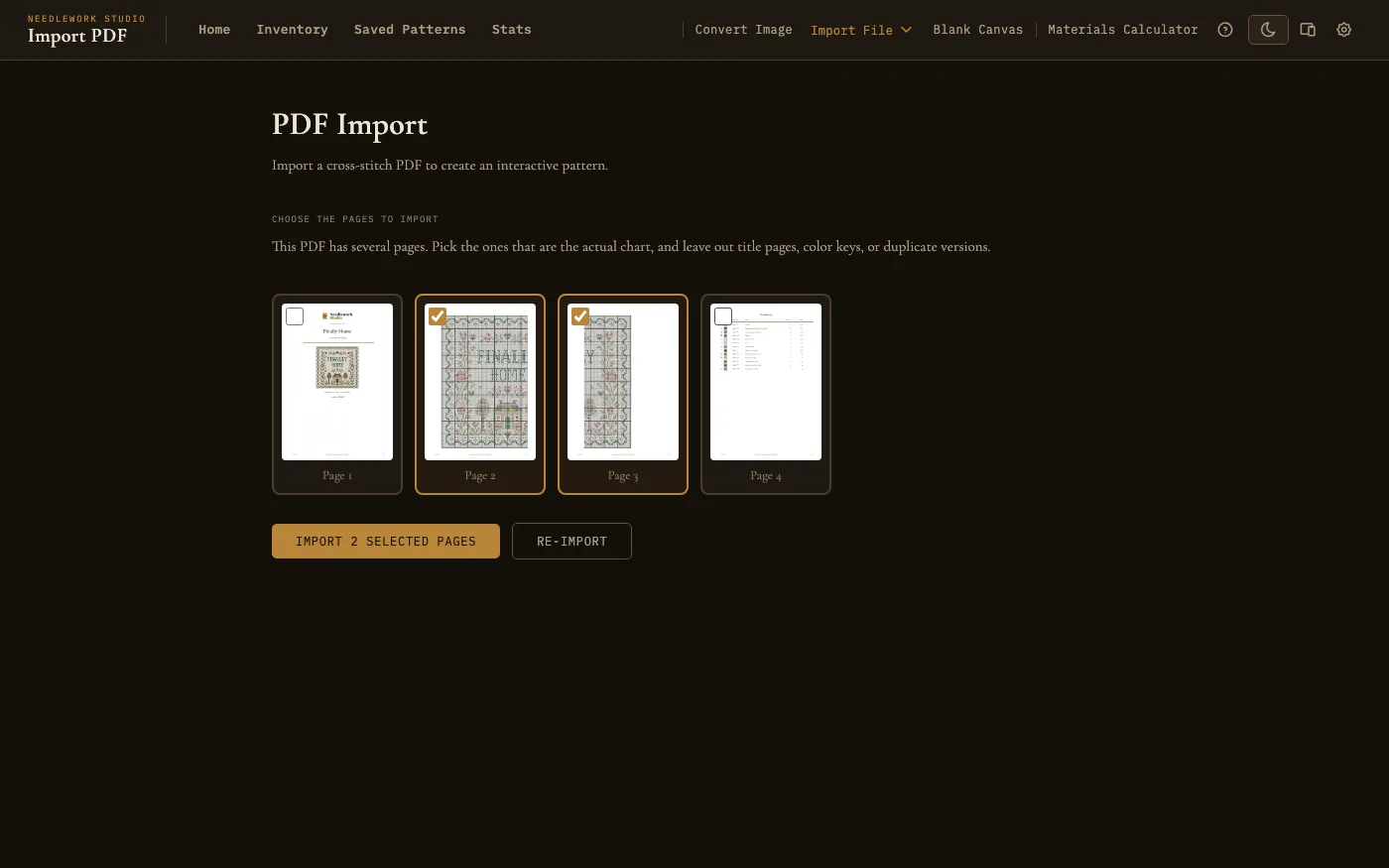
Only the two chart pages are ticked; the cover and the color key are left out
If a PDF has more pages than the picker can show, the ones that look like chart pages are shown first, with a note. If your chart is not among them, split the PDF and import the chart pages on their own.
Saving the Pattern
After the import, you see a preview of the chart and its thread list. Give the pattern a name and click Save Pattern, then click View Pattern to open it.
Lining It Up With the Grid
For stitching over a chart to work, the chart's squares have to sit exactly on the canvas squares. When the importer can measure the chart's printed grid, the pages arrive already lined up, and at most you drag them into their final spot.
When a page still needs lining up, the viewer shows a notice: This chart was imported as a reference image. Line it up with the grid, then stitch over it. Click Set it up to open the editor with the Reference tool (you may first be asked whether to edit the original or a copy), or click the × to hide the notice for now. It stops appearing once every page has been lined up or cropped.
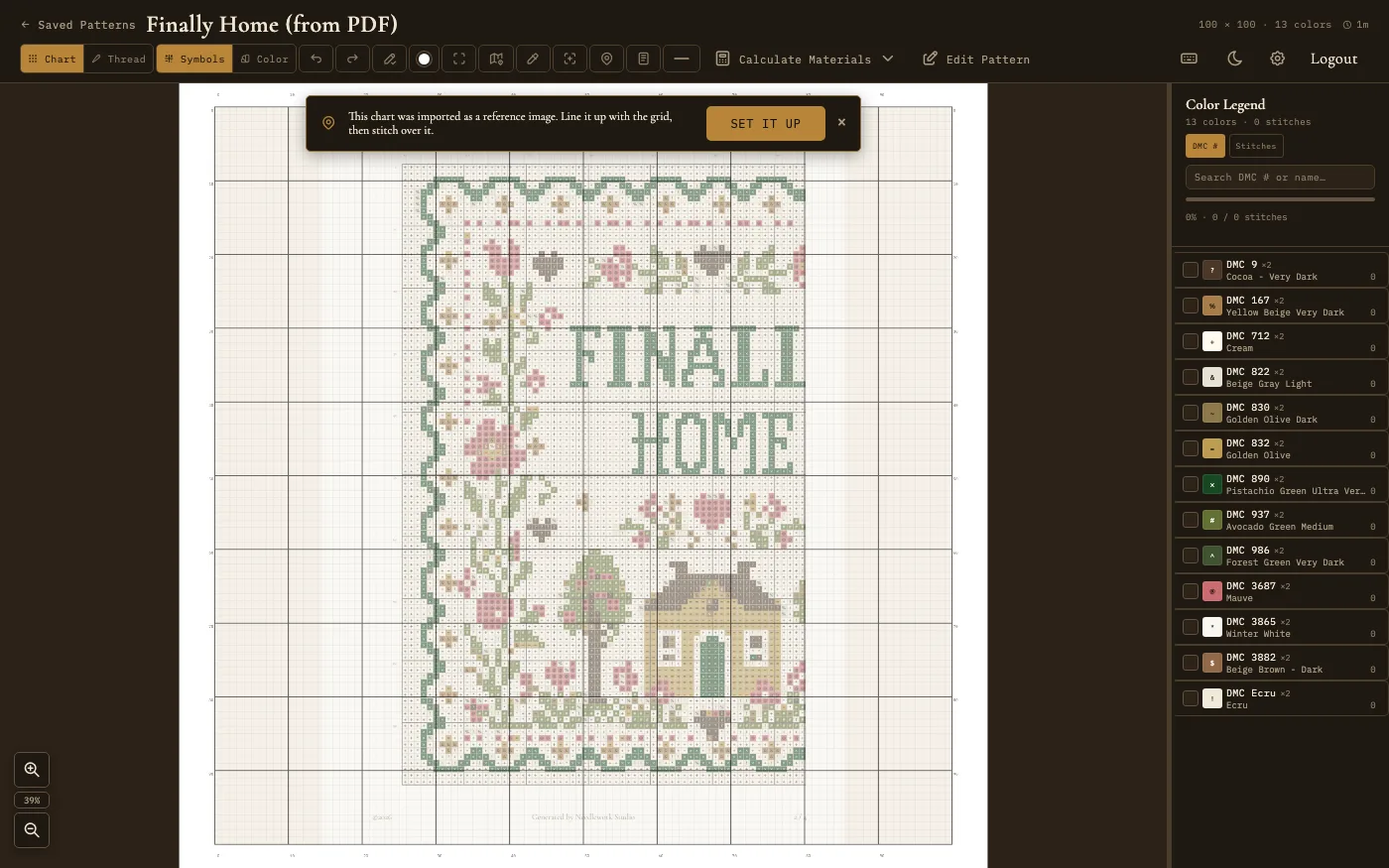
The notice in the viewer, with Set it up
In the Reference tool's panel, click Line up with grid:
- If the grid was measured at import, the page lines up in one click.
- If it was not, you measure it yourself. Zoom in, then click three corners of one bold 10×10 square: the top-left, the top-right, then the bottom-left. The panel tells you which corner to click next. Press Esc or click Cancel to stop.
The first time you use it, a short explanation appears before it starts. Tick Don't show this again to skip it next time. When the page is lined up, drag the chart into place over the grid.
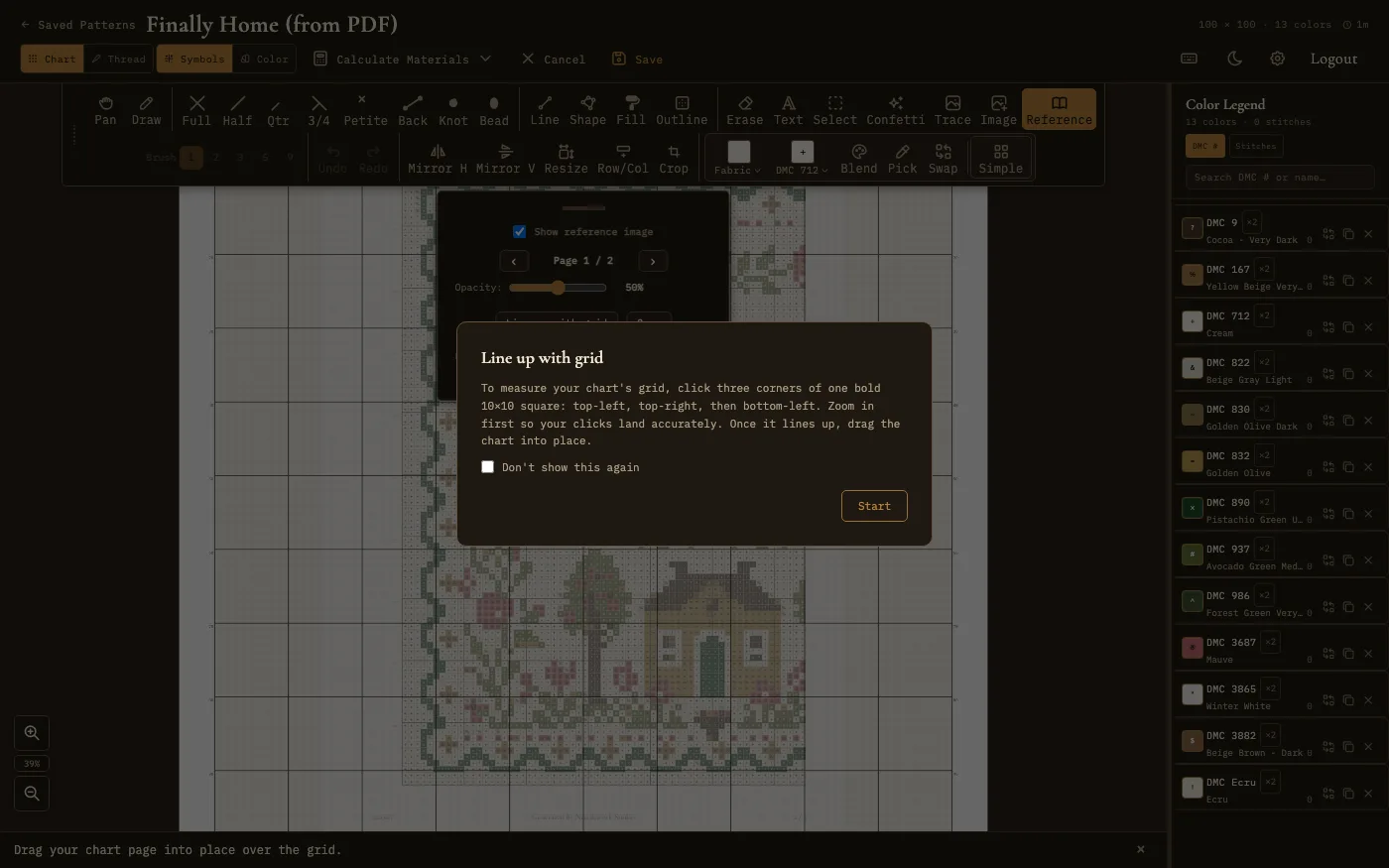
The first-time explanation before you measure the grid
Adjusting a Page
The Reference tool (the book icon in the editor toolbar) only appears when a pattern has chart pages. If you do not see it, click All tools to show the full toolbar. Its panel has everything for positioning them:
- Show reference image - Turn the chart on or off. This is remembered for each pattern on this computer.
- Page arrows - Step through the pages of a multi-page chart. Each page has its own settings.
- Opacity - Fade the chart so your stitches stand out on top of it.
- Drag - Drag the chart to move it. Hold Space to pan the canvas instead.
- Crop - Drag a box around just the pattern to trim off the page margins, then click Done. Reset clears the box and Cancel leaves the page as it was. When a pattern has only one chart page and it is already lined up, cropping also trims the canvas to match. Ctrl+Z undoes a crop.
Open Fine-tune for exact adjustments:
- Horizontal and Vertical stretch the page, from 10% to 300%.
- Rotation turns it, from -180° to 180°, which helps with a slightly crooked scan.
- Click any of the three values to type an exact number, then press Enter.
- Move arrows nudge the page one square at a time, or ten with Shift.
- Place on grid pins a page to a set of columns and rows, for charts spread across several pages. Un-place removes that position, and the page stretches to fill the whole grid again.
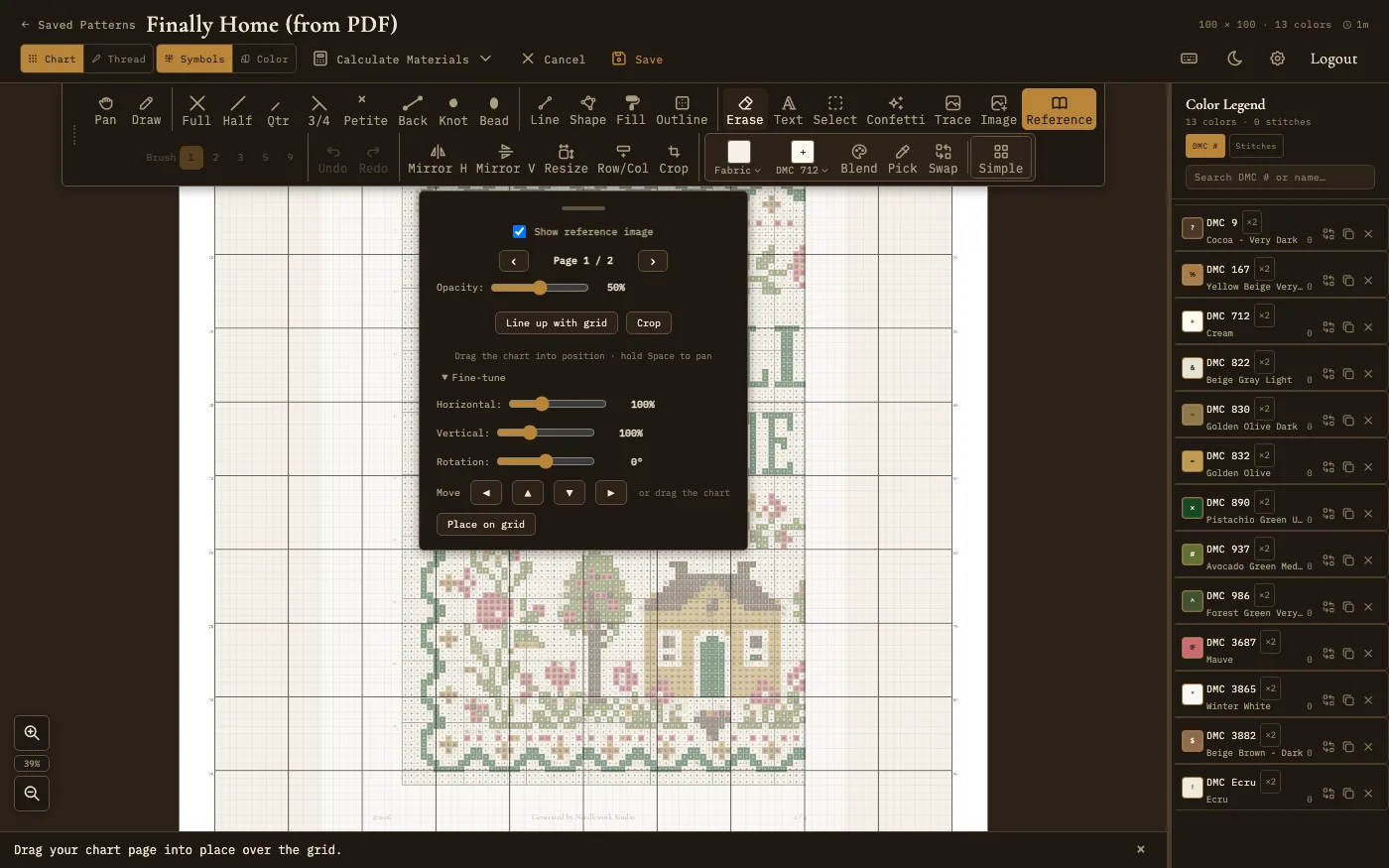
The Reference tool, with Fine-tune open
Stitching Over It
With the chart lined up, use the editor's drawing tools to put stitches on top of it, using the thread list that came with the import. The chart shows through underneath like tracing paper. Save as you go like any other pattern.
The chart also shows in the viewer, so you can keep it in sight while you work. Stitching progress is marked on the stitches you have placed on the grid, the same way as any other pattern. See Progress Tracking.
Limits and Syncing
- Up to 48 chart pages per pattern.
- The PDF itself can be up to 25 MB.
- Chart pages travel with the pattern when you use Desktop Sync, which needs the Full Version + Server license.