Pattern Viewer
View, navigate, and track progress on your cross-stitch patterns with multiple display modes.
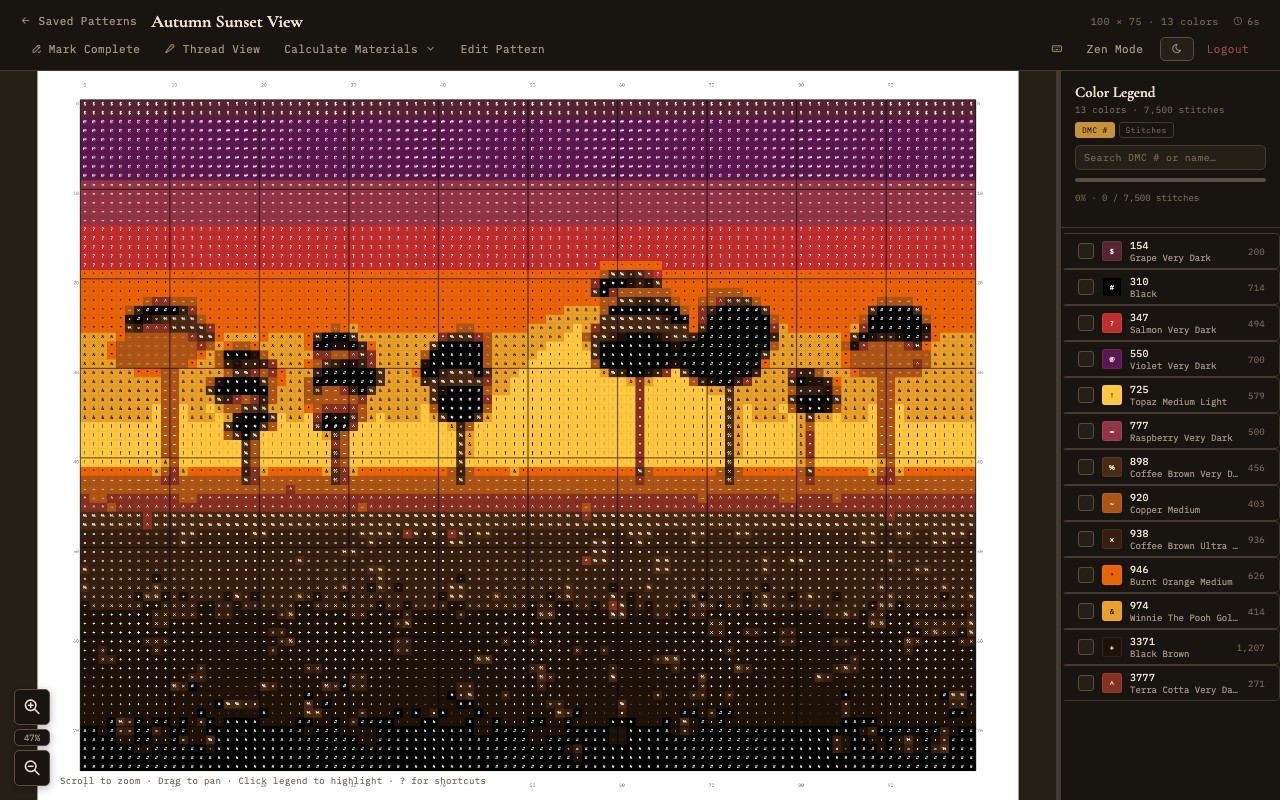
The pattern viewer in chart mode with color legend and progress tracking
Viewing Modes
The Pattern Viewer has three viewing modes. Switch between them using the mode toggle buttons in the viewer toolbar.
Chart Mode
Chart mode displays the pattern as a traditional cross-stitch chart - a grid of colored squares with symbol overlays. This is the standard way to read a cross-stitch pattern while stitching. Each grid cell shows a colored square with a unique symbol assigned to that thread color. The symbol overlays ensure that the chart remains readable even when printed in black and white or when two similar colors are used side by side.
Chart mode includes four-sided rulers along the top, bottom, left, and right edges of the grid. These rulers display stitch coordinates and make it easy to count your position on the fabric. The rulers follow your scroll position so they remain visible as you pan across the pattern.
You can toggle gridlines on or off. When gridlines are enabled, thin lines separate each stitch cell, making it easier to count stitches and follow rows. When gridlines are disabled, the cells sit flush against each other for a cleaner visual appearance.
Thread Mode
Thread mode renders the pattern with realistic stitch textures instead of flat colored squares. Each stitch is drawn to approximate the appearance of actual thread on fabric, showing the characteristic X shape of cross-stitches with simulated thread texture and shading. This mode gives you a preview of how the finished piece will look when stitched.
Thread mode is particularly useful for evaluating color choices, checking that gradients look natural, and getting a sense of the overall visual impact of the design before committing to stitching it.
Zen Mode
Zen mode provides a distraction-free, fullscreen viewing experience. When activated, the navigation bar, sidebar, toolbar, and all other interface elements are hidden, leaving only the pattern chart filling the entire screen. This mode is designed for focused stitching sessions where you want maximum screen space for the chart.
Press Z or click the zen mode button to enter zen mode. Press Z or Escape to exit back to the normal view.
Legend Panel
The legend panel is a sidebar that displays a list of all thread colors used in the current pattern. It serves as both a reference and a progress tracking tool.
Thread List
Each entry in the legend shows the thread's color swatch, symbol (as used in chart mode), thread number, name, and stitch count. The legend provides a complete bill of materials for the pattern, telling you exactly which threads you need and how many stitches of each color the pattern contains.
Pattern Summary
At the top of the legend, a summary line shows the total number of colors, the weighted stitch count across all stitch types, and an approximate skein estimate for 14-count fabric. Different stitch types are weighted according to their thread usage (a half stitch counts as 0.5, a quarter stitch as 0.25, and so on) so the totals reflect actual material consumption rather than just the raw cell count.
Search
The legend panel includes a search field that lets you filter the thread list by thread number or name. This is useful in patterns with many colors when you need to quickly find a specific thread.
Resizable Sidebar
The legend panel is resizable - drag its edge to make it wider or narrower according to your preference. This allows you to balance the space between the legend and the chart area. The panel can also be collapsed entirely to maximize the chart viewing area.
Per-Color Progress Tracking
Each color entry in the legend includes a progress toggle. You can mark individual colors as complete when you have finished stitching all instances of that color in the pattern. Completed colors are visually distinguished in the legend (dimmed or struck through), making it easy to see at a glance which colors remain. This per-color tracking is especially useful when stitching with the "cross-country" method, where you complete one color at a time across the entire pattern.
Minimap
A minimap in the bottom-right corner of the viewer shows a scaled-down overview of the entire pattern. A highlighted rectangle indicates the portion of the pattern currently visible in the main viewport. Click or drag on the minimap to jump to a different area. The minimap is especially helpful on large patterns where the zoomed-in view only shows a small section of the chart.
Zoom Controls
The viewer supports a wide zoom range, giving you the flexibility to see the entire pattern at once or zoom in to inspect individual stitches.
- Zoom in - Click the + button in the toolbar, press the + or = key, or use your mouse scroll wheel while holding Ctrl (or Cmd on macOS).
- Zoom out - Click the - button, press the - key, or scroll down while holding Ctrl/Cmd.
- Fit to window - Double-click the zoom percentage indicator to automatically fit the entire pattern within the visible area.
The current zoom level is displayed as a percentage in the toolbar. At lower zoom levels (below 50%), symbols may be hidden automatically to keep the chart readable, showing only the color blocks.
Display Toggles
The viewer toolbar provides several toggle buttons that control what is displayed on the chart. These can be combined in any combination.
Gridlines
Toggles the thin lines between stitch cells on and off. Gridlines make it easier to count stitches but can add visual clutter at lower zoom levels. Press G to toggle gridlines.
Symbols
Toggles the symbol overlays on each stitch cell. When enabled, each cell displays a unique character or shape identifying its thread color. When disabled, only the color fill is shown. Press S to toggle symbols. Symbols are particularly important when working with a printed black-and-white chart or when the pattern contains colors that are hard to distinguish on screen.
Stitches
Toggles the visibility of different stitch types on the chart. You can selectively show or hide full stitches, part stitches (half, quarter, three-quarter), backstitches, and French knots. This is useful for focusing on one stitch type at a time during stitching - for example, hiding backstitches while you work on the cross-stitches, then hiding everything except backstitches when you are ready to outline.
Keyboard Shortcuts
The Pattern Viewer supports the following keyboard shortcuts for efficient navigation and control:
- ? - Show keyboard shortcut help
- Z or F - Toggle zen / fullscreen mode
- M - Toggle stitch marking mode
- G - Toggle gridlines
- S - Toggle symbol overlays
- + / = - Zoom in
- - - Zoom out
- ← → ↑ ↓ - Pan the chart
- Escape - Exit zen mode, clear highlight, close search
Progress Tracking
Progress tracking in the Pattern Viewer works at the per-color level. As you stitch your way through the pattern, you can mark each color as complete in the legend panel. The viewer keeps a running count of how many colors are finished versus how many remain, giving you a clear sense of overall progress.
Estimated Remaining Time
Once you have marked at least one color as complete, the viewer calculates an estimated time remaining based on your pace so far. This is displayed as "~X hours Y minutes remaining" above the legend. The estimate updates each time you mark another color done, so it gets more accurate as you go. It disappears once all colors are finished.
Progress data is saved as part of the pattern, so it persists across sessions. If you are using Desktop Sync, your progress is also synchronized between the desktop app and your server instance, allowing you to track progress from any device.
For broader project management features including pattern status tracking and materials calculation, see Project Management.