Getting Started
An introduction to Needlework Studio and a walkthrough of your first session.
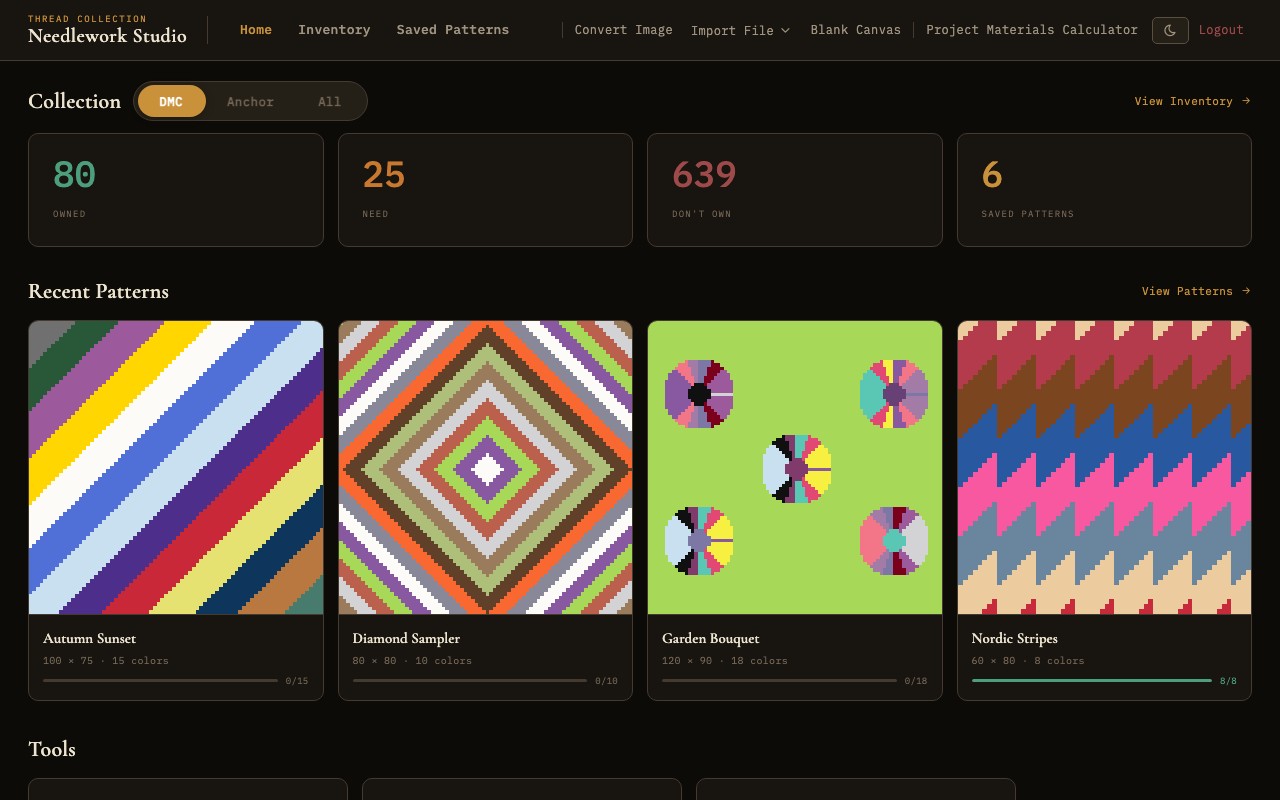
The Needlework Studio dashboard with stats cards and recent patterns
What is Needlework Studio?
Needlework Studio is a free, open-source, self-hosted application for managing and designing counted cross-stitch patterns. It includes a pattern editor, thread inventory for DMC and Anchor brands, project tracking, and import/export in PDF, OXS, and JSON formats. It runs in your web browser or as a desktop app.
Three Ways to Run Needlework Studio
All three methods run the same application with the same feature set.
Desktop App (Recommended for Personal Use)
Download the installer for your platform - macOS (.dmg), Windows (.exe), or Linux (.AppImage). The desktop app bundles everything you need and runs locally without requiring a server. It also supports bidirectional sync with a self-hosted server instance if you want to access your data from multiple devices.
Docker (Recommended for Self-Hosting)
The Docker image is the fastest way to deploy a server instance. A single docker run command or a short docker-compose.yml file is all you need. This is ideal if you want to access Needlework Studio from any device on your network or share it with household members.
Manual Python Setup
If you prefer to run the application directly, you can clone the repository and run the Flask backend with Python 3.10 or later. This approach gives you the most control over the environment and is useful for development or customization.
For detailed installation instructions for all three methods, see the Installation page.
First Launch Walkthrough
Creating Your Account
When you open Needlework Studio for the first time, you will be presented with the login screen. If no accounts exist yet (a fresh installation), you can register a new account by clicking the Register link below the login form. Enter a username and password to create your account. On the desktop app, this step is handled automatically with a local default account.
Exploring the Dashboard
After logging in, you arrive at the Home page. The dashboard gives you an at-a-glance summary of your workspace:
- Stats cards - These display your total number of saved patterns, threads owned, threads needed, and patterns in progress. As you build your inventory and save patterns, these numbers update automatically.
- Recent patterns - A row of thumbnail cards showing your most recently saved or edited patterns. Click any card to open it in the Pattern Viewer.
If this is a brand-new installation, the dashboard will show zeroes and an empty recent patterns section. That is expected - once you import your first pattern or start building your thread inventory, the dashboard will populate.
Navigation Overview
The main navigation bar runs along the top of the screen (or is accessible via the hamburger menu on smaller screens). Here is what each section contains:
Home
Returns you to the dashboard with stats cards and recent patterns.
Inventory
Opens the Thread Inventory, where you can browse all 744 DMC and 400+ Anchor threads, search by number or name, filter by ownership status, and track your skein quantities.
Saved Patterns
Displays your full pattern library as a gallery of thumbnail cards. You can search, sort by name or date, filter by status (Not Started, In Progress, Completed), and perform batch actions like deletion. Click any pattern to open it in the Pattern Viewer.
Create Menu
The Create dropdown provides several ways to start a new pattern:
- Image to Pattern - Upload a photograph or image file and convert it into a cross-stitch chart. You can configure the grid size (10 to 500 stitches), color count (2 to 256 colors), dithering, contrast, brightness, and crop the image before generating.
- Blank Canvas - Start with an empty grid at custom dimensions. Useful when you want to design a pattern entirely from scratch.
- PDF Import - Upload a cross-stitch PDF chart. Needlework Studio will parse the chart pages and extract the pattern data automatically.
- JSON Import - Import a pattern in Needlework Studio's native JSON format, useful for sharing patterns between instances.
- OXS Import - Import an Open Cross Stitch (.oxs) XML file for interoperability with other cross-stitch software.
For a deeper look at the pattern creation tools, see Pattern Design. For details on file import workflows, see Import & Export.
Theme Toggle
Needlework Studio supports both a dark theme and a light theme. You can switch between them at any time by clicking the theme toggle button in the top navigation bar. Your preference is saved in your browser's local storage and will persist across sessions.
The dark theme uses warm, low-contrast tones. The light theme is brighter and can be easier for judging thread colors.
Next Steps
Now that you are familiar with the interface, here are some suggested next steps:
- Thread Inventory - Start cataloguing the threads you own so Needlework Studio can help you plan materials for future projects.
- Pattern Design - Try converting an image into a cross-stitch pattern or open a blank canvas to experiment with the drawing tools.
- Import & Export - If you have existing patterns in PDF, OXS, or JSON format, import them into your library.